无限下单(自定义)
无限下单(自定义) 是自定义套利的点价下单窗口。使用前需先 创建自定义套利组合。
位置:菜单 → 策略 → 无限下单(自定义)
也可在 实时行情 → 自定义套利 窗口点击右上角 无限下单 按钮,快速打开 无限下单(自定义) 窗口。
对于大商所、郑商所、广期所等已有交易所标准套利组合的合约(位置:交易 → 实时行情 → 套利),无需使用 自定义套利。建议优先在普通下单板直接下单,可避免不利滑点。详见:标准套利
相关视频和推文:
- 视频:套利猎人 - 不再套不到 by 王鼎
- 视频:套利猎人 + 无限下单,带你玩转自定义套利 by 王鼎
- 视频:套利猎人入门 - 有手就行 by 橘子&草莓同学
- 视频:2 分钟学会用无限下单(自定义)下单 by 草莓同学
- 视频:3 分钟学会自定义套利止盈止损 by 草莓同学
- 推文:鹅鹅鹅 套鹅大赛开始惹
⚠️ 风险提示:除服务器单之外,无限易的算法均为本地算法单,依赖行情与成交回报触发。若因网络延迟、断线、软件关闭等原因导致算法无法正常运行,无限易不承担责任。
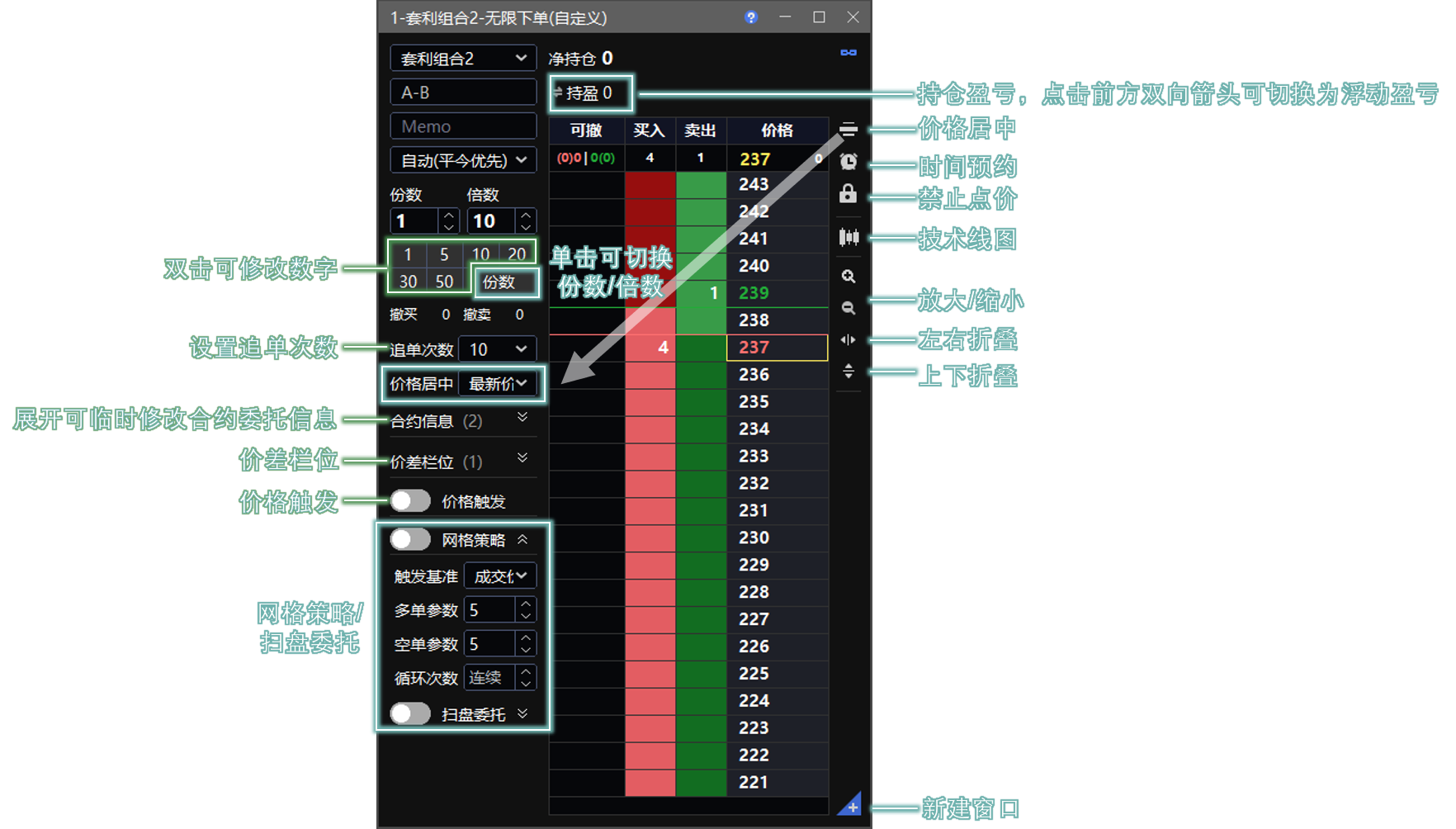
面板说明
| 参数 | 说明 |
|---|---|
| 价差栏位 | 自定义右侧每一格价格相差的 Tick 值。 |
| 价格触发 | 适合“上涨看多、下跌看空”的场景。若不理解使用场景,请勿随意开启。详见下方 价格触发 说明。 |
下单方法
- 选择已创建的自定义套利组合。
- 设置 份数 / 倍数。
- 在价格栏中点击目标价差下单。
点价规则:
- 单击 红色 区域:看多组合。
- 单击 绿色 区域:看空组合。
- 价格栏由上至下,价差由高到低。
份数 / 倍数
- 份数:按照创建组合时设置的各腿合约数量,执行几次组合。
- 倍数:按照创建组合时设置的各腿合约数量,乘以几倍。
案例
创建 AB 套利组合时,A、B 合约的下单数量设置为 2:3。
| 设置 | 实际执行 | 风格 |
|---|---|---|
| 10 份 | A 2 手、B 3 手 执行 10 次。每次组合全部成交后,再执行下一次组合。 | 稳健 |
| 10 倍 | A 20 手、B 30 手 执行 1 次。未勾选拆单且触发条件满足时,所有委托一次发出。 | 激进 |
| 5 倍、2 份 | A 10 手、B 15 手 执行 2 次。 | 先加倍,再按份数执行 |
以上设置的最终结果都是 A 20 手、B 30 手,但执行过程不同。
规则说明:
- 同时设置 份数 和 倍数 时,执行时先按 倍数 放大数量,再按 份数 执行次数。
- 每份组合内各腿合约的最终下单数量 = 单腿合约数量(创建组合时设置)× 倍数(下单板设置),再四舍五入取整数。
- 若一份组合内任一合约最终下单数量为 0,下单时会提示,需调整单腿数量或倍数。
- 若勾选 拆单,每份内按加倍后的数量拆单。优先合约会根据市场盘口量自动拆分委托;优先合约成交后,非优先合约按优先合约累计成交数量的比例委托。
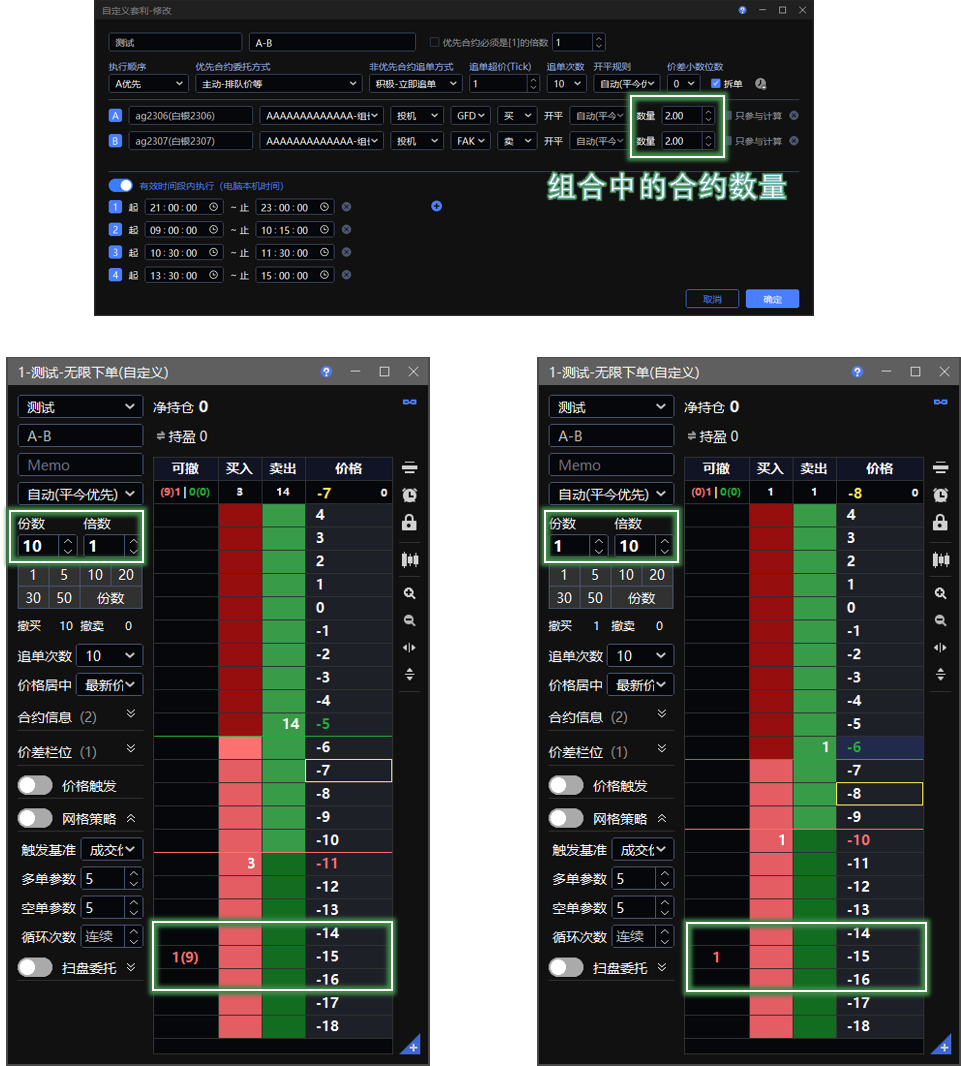
如上图所示,可撤 一列会显示份数相关数量:
- 左图的 1(9) 表示 1 倍、10 份,括号中的数量表示正在排队的剩余份数。
- 右图的 1 表示 10 倍、1 份。
网格策略
支持按价差执行网格策略,使用方法与标准合约相同。详见 网格策略。
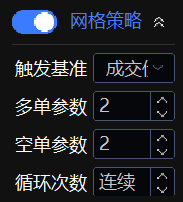
规则说明:
- 自定义套利网格多单、空单参数的 Tick 标准,以 无限下单(自定义) 价格栏位显示为准:一个格子 = 1 个 Tick。
- 网格反向数量基准以成交的 份数 为准。
扫盘委托
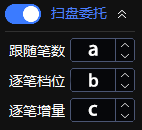
支持批量按不同价差下单,使用方法与标准合约相同。详见 批量下单。
价格触发
价格触发 适合“上涨看多、下跌看空”的场景。若不理解使用场景,请勿随意开启。
高价买、低价卖时,可开启 价格触发 来改变触发条件,新下的单可作为止盈 / 止损单。
案例
当买入价差高于当前卖价、卖出价差低于当前买价时,可开启 价格触发 改变触发方向。
| 价格触发 开关 | 组合方向 | 触发条件 |
|---|---|---|
| 关 | 买 | 卖价 ≤ 委托价差 |
| 开 | 买 | 卖价 ≥ 委托价差 |
| 关 | 卖 | 买价 ≥ 委托价差 |
| 开 | 卖 | 买价 ≤ 委托价差 |
时间预约
| 参数 | 说明 |
|---|---|
| 开始时间 | 开启后,挂出的委托只会在到达开始时间后生效。 |
| 结束时间 | 开启后,挂出的委托若在结束时间前仍未成交,则撤单并终止算法。 |
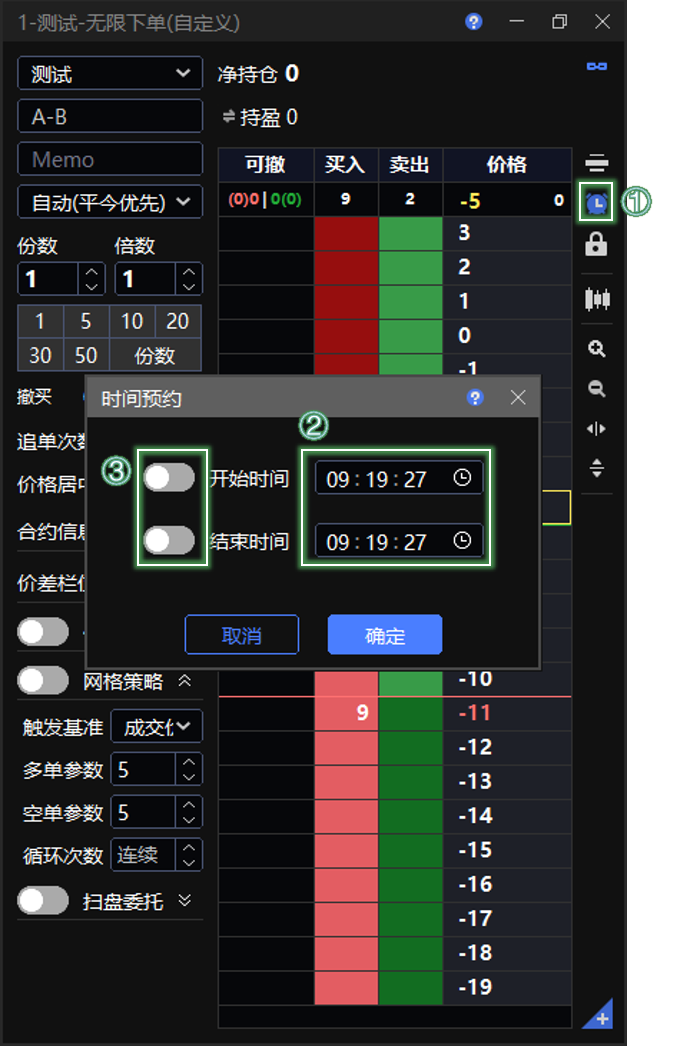
设置方法
- 点击 无限下单(自定义) 面板右侧的“时钟”图标,打开 时间预约 设置面板。
- 输入 开始时间、结束时间。可同时设置,也可只设置其中一个。
- 开启对应时间前的开关后,再下单。
时间预约设置完成后,“时钟”图标会保持高亮状态。之后下单的每一条算法都会附加该时间设置。
MEMO(委托备注)
下单前,可在界面上的 MEMO 输入框填写备注。之后通过该窗口发出的每一笔报单都会带有该 MEMO 备注。
可在 实时回报 窗口使用 关键字查询 筛选 MEMO。
下单账号
展开 合约信息 后,可为组合内各合约临时设置不同下单账号,或设置同一个账号组。账号组仅支持跟单模式账号组,下单前需先在 系统 → 多账号下单 中设置。
跟单模式账号组中各账号的下单比例体现在 份数 上。下单后,算法列表中每个账号会生成一条记录。
各账号下单的总份数 = 份数 × 账号组下单比例
若 份数 和 倍数 同时设置,每份内数量先乘以 倍数,再用加倍后的份数乘以账号组下单比例。
若各账号下单总份数的计算结果存在小数,则舍去小数点,即向下取整;若计算结果不足 1,则默认为 1。
价格居中
在面板左侧设置  ,作为价格居中的基准。
价格居中规则:
- 当合约价格变化超出窗口中的价格格子范围时,面板会自动居中一次价格。
- 若点击并激活面板右侧的
 ,只要合约价格变化,面板就会持续自动居中价格。
 - 为方便操作,当鼠标悬停在 可撤、买入、卖出、持仓明细 三列时,价格不会自动居中。移开鼠标后,单击鼠标右键可快速价格居中。
面板折叠
- 左右折叠:点击窗口右侧最下方的“左右折叠”箭头图标,可隐藏左侧委托设置区域;再次点击可显示。
- 上下折叠:点击窗口右侧最下方的“上下折叠”箭头图标,面板下方会显示指定价输入框和委托按钮;再次点击可隐藏。
保存和管理算法
下单后,可在 算法列表 窗口查看并管理委托。
位置:交易 → 算法列表 → 套利猎人
算法运行规则
- 网络断线后,算法无法正常运行。
- 执行过程中手动撤单,算法会自动终止。
- 执行过程中遇到错单或手动撤单,算法会自动暂停(v2025.0925b 之前的版本会终止)。
- 暂停时若存在缺腿,再次启动时会自动补单。
- 算法单皆委托在本地。软件关闭后,算法不会继续运行,也不会自动保存;下次打开软件时无记录。
同一台电脑保存算法
可勾选 无限下单(自定义) 窗口右上角的  自动保存,自动保存 执行中、已暂停 的算法。
🟡 保存规则:
- 只保存剩余份数。
- 若份数进度为 6/10,则保存剩余 4 份。
- 若第 7 份已有部分成交,但未完成,则不计为已完成份数。
不同电脑保存算法
可通过手动导出或 定时管家 自动保存算法文件,再在另一台电脑导入。
| 保存方式 | 操作 | 保存范围 |
|---|---|---|
| 手动保存 | 在 算法列表 → 套利猎人 右上角点击 手动 保存,下一次点击导入文件图标导入。 | 保存全部算法,包括已完成、已终止算法;保存全部份数。 |
| 自动保存 | 通过 定时管家 设置自动保存算法文件,下一次点击导入文件图标导入。 | 保存 执行中、已暂停 的算法;规则与窗口右上角 自动保存 一致,只保存剩余份数。 |
手动保存图标:
导入文件图标:
保存和导入注意事项
- 保存的算法在下次打开或导入后,算法列表状态为 已暂停,需手动点击 开始 后才会执行。
- 保存 套利猎人 算法时,实时行情 → 自定义套利 中必须有与保存前配置相同的组合,否则导入算法会失败。
- 若下单前为本笔算法(母单)设置了止盈或止损价差,只有算法列表中母单的 份数进度 栏位剩余份数 > 0 时,才可自动或手动保存;例如 1/1 不会保存。
常见问题
为什么看到价格到了却不触发
组合触发需同时满足以下条件:
对手价差满足条件。触发依据不是最新价,也不是 K 线价格。
点击下单后,需等待下一次价格推送才会触发;价格未更新不会触发。
盘口数量满足条件。组合买卖盘口数量至少需要满足 1 份组合,才会触发。
处于规定时间内。实时行情 窗口中组合前的状态需为 ON,表示合约处于连续交易时段。若创建自定义套利组合时开启了 有效时间段内执行,则只会在该时间段内触发。
算法列表 中状态为 已暂停 的单子不会触发。
组合 K 线没有分时图、没有影线
- 组合 K 线不支持分时图。可将周期切换为 1 分钟,主图类型切换为 收盘线,效果与分时图一致。
- 组合 K 线不支持历史数据影线。历史数据只是切片数据,多个合约在同一周期合成的最高价、最低价不一定出现在周期内同一时间,缺少参考意义。
详见 视频:组合 K 线线图原理。
滑点如何产生
只要使用自定义套利,就无法完全避免滑点。滑点可能有利,也可能不利。合理设置参数可以降低不利滑点概率,但不能完全消除。
常见原因:
追单
追单会对未成交单加价,以提高成交概率并防止缺腿。一旦发生追单,就可能产生不利滑点。
合约行情瞬变或自身网络不佳
当价差已经满足条件时,委托单会按对手价发出;若对手价格瞬间变化,可能产生滑点。该类行情因素属于不可抗力。
相关视频:自定义套利参数到底怎么设置
缺腿如何处理
如果组合执行过程中,当前份数内某一腿合约未能按比例足额成交,并且持续超过 3 秒,系统会触发缺腿预警:
- 算法列表 的 成交预警 栏位会显示三个 ❗️❗️❗️。
- 右下角会弹出策略成交预警弹窗。
处理方式:
- 打开 算法列表,查看 成交数量 栏位。
- 如果查看时各腿已经按比例成交,无需处理。
- 如果仍处于缺腿状态,可以双击该算法暂停,再双击启动。
- 算法会先撤单,再重新补单。
⚠️ 注意:如果在其他窗口手动对单腿合约撤单或追单,会导致策略终止。
为什么一直撤单难以成交
如果自身网络没有优势,遇到较活跃的合约时,可能只能看到行情满足触发条件,但抢不到单子。
证券合约零股如何处理
证券合约发生零股成交并触发 追单 时,组合最终成交数量可能相应增加。
组合数量为 1 份
若部分成交后,剩余追单数量不足 最小委托单位,系统会自动 向上取整,使追单数量达到最小委托单位的整数倍。
示例:沪深主板最小委托单位为 100 股。腿 A 一份报单量为 500 股,部分成交 388 股,剩余未成交数量为 112 股。由于其中 12 股 不足 100 股,追单数量会向上取整为 200 股,最终成交 588 股,成交差为 +88 股。
组合数量超过 1 份
若委托 5 份组合,前 4 份按上述向上取整原则处理,最后 1 份按当时的成交情况处理。
- 若成交数量已经超过总报单数量,后续份数会自动取消,并终止报单。
- 若剩余数量不足最小委托单位,或不足最小委托单位的倍数,则向上取整。
InfiniTrader(Custom)
InfiniTrader(Custom) is the click-to-price order entry window for Custom Spread. Create a custom spread before using it.
Path: Menu → Strategies → InfiniTrader(Custom)
You can also click InfiniTrader in the upper right of Markets → Custom Spread to quickly open InfiniTrader(Custom).
For official exchange standard spread contracts on DCE, CZCE, and GFEX, go to Trade → Markets → Spread. These contracts can be traded directly from the regular order panel, with no unfavorable slippage. You do not need to use Custom Spread. See Standard Spread.
⚠️ Risk notice: Except for Server Trader, InfiniTrader algorithms run locally and rely on market data and fill reports to trigger. InfiniTrader is not liable for algorithm failure caused by network latency, disconnection, software shutdown, or similar issues.
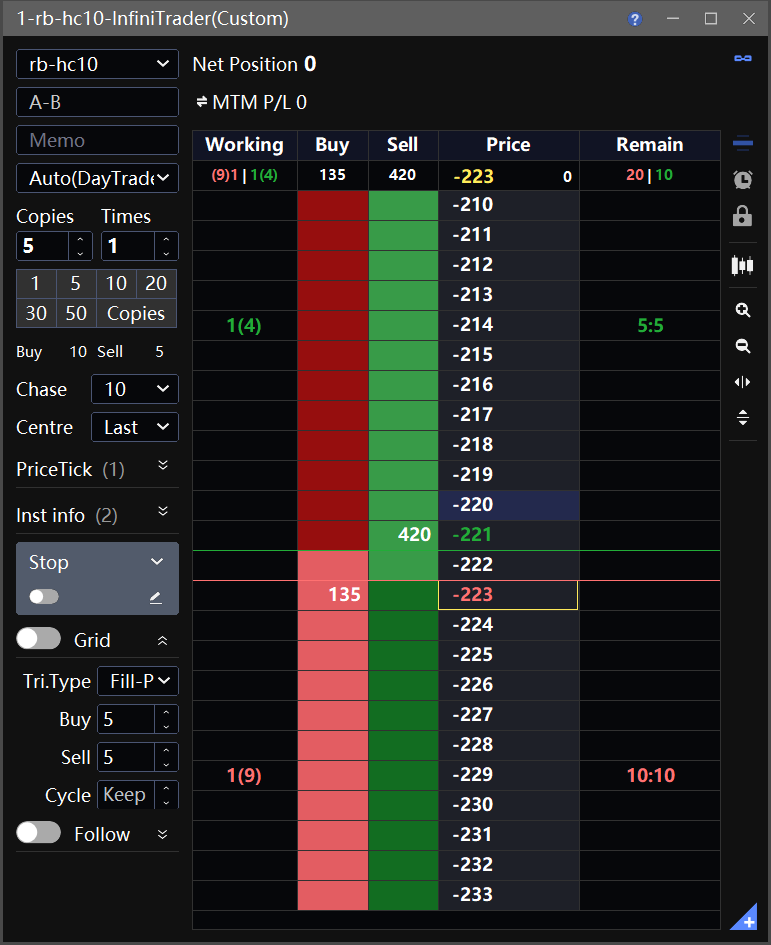
Panel Overview
| Parameter | Description |
|---|---|
| Spread ladder | Each price step on the right side of Custom Spread represents 1 Tick difference. |
| Stop | Suitable for going long on rises or going short on declines. Do not enable it unless you understand the use case. See Stop below. |
Place an Order
- Select an existing custom spread.
- Set Copies / Times.
- Click the target spread on the price ladder to place the order.
Click rules:
- Click the red area to go Long on the spread.
- Click the green area to go Short on the spread.
- The spread values run from high to low, top to bottom.
Copies / Times
- Copies means how many times to execute the leg quantities configured when the spread was created.
- Times means the multiplier applied to the leg quantities configured when the spread was created.
Example
When creating an AB spread, the order quantity ratio of A and B is set to 2:3.
| Setting | Execution | Style |
|---|---|---|
| 10 Copies | Execute A 2 lots, B 3 lots 10 times. The next copy starts only after the previous spread is fully filled. | Conservative |
| 10 Times | Execute A 20 lots, B 30 lots once. If Split is off and the trigger condition is met, all orders are sent at once. | Aggressive |
| 5 Times, 2 Copies | Execute A 10 lots, B 15 lots twice. | Apply Times first, then Copies |
All three settings result in A 20 lots and B 30 lots, but the execution process is different.
Rules:
- When Copies and Times are both set, the system first applies Times to increase quantity, then applies Copies to determine execution count.
- Final order quantity for each leg in one copy = leg quantity configured when the spread was created × Times set on the order panel, rounded to the nearest integer.
- If the final order quantity of any leg in one copy is 0, a prompt appears when you place the order. Adjust the leg quantity or Times.
- If Split is selected, splitting is based on the multiplied quantity in each copy. The priority leg is automatically split according to market depth. After the priority leg is filled, non-priority legs are ordered proportionally based on the cumulative filled quantity of the priority leg.
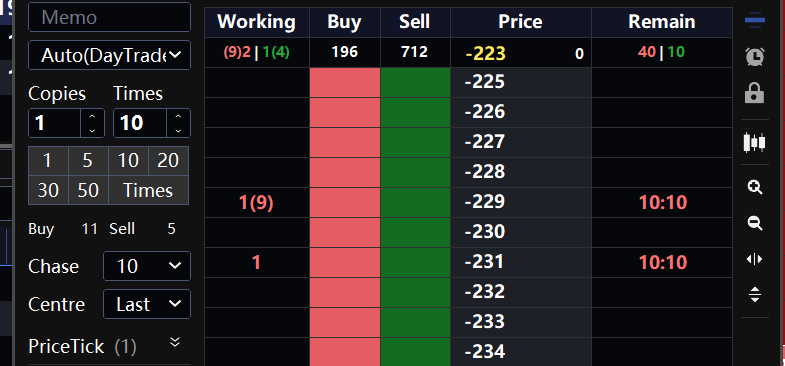
As shown above, the Working column shows copy-related quantity information:
- 1(9) means 1 Time, 10 Copies. The number in parentheses is the remaining copies still in queue.
- 1 means 10 Times, 1 Copy.
Grid
You can run a grid strategy on spread values. Usage is the same as for standard contracts. See Grid.
Rules:
- For long and short grid parameters in Custom Spread, the Tick standard follows the price ladder in InfiniTrader(Custom): one grid step = 1 Tick.
- Reverse grid quantity is based on filled Copies.
Follow
You can place batch orders at different spread values. Usage is the same as for standard contracts. See Follow.
Stop
Stop is suitable for going long on rises or going short on declines. Do not enable it unless you understand the use case.
Use Stop to change trigger conditions when buying at a higher spread or selling at a lower spread. The new order can then be used as a take-profit or stop-loss order.
Example
If the buy spread is higher than the current ask spread, or the sell spread is lower than the current bid spread, enable Stop to reverse the trigger direction.
| Stop | Direction | Trigger condition |
|---|---|---|
| Off | Buy | Ask spread ≤ order spread |
| On | Buy | Ask spread ≥ order spread |
| Off | Sell | Bid spread ≥ order spread |
| On | Sell | Bid spread ≤ order spread |
Timer
| Parameter | Description |
|---|---|
| Begin Time | After it is enabled, the order becomes active only after Begin Time. |
| End Time | After it is enabled, if the order is still unfilled before End Time, it is canceled and the algorithm stops. |
How to set it
- Click the clock icon on the right side of the InfiniTrader(Custom) panel to open Timer.
- Enter Begin Time and End Time. You can set both, or only one of them.
- Turn on the corresponding switch, then place the order.
After Timer is set, the clock icon stays highlighted. Every algorithm order placed later will include this time setting.
MEMO
Before placing an order, enter your note in the MEMO input box. Every order placed from this window will carry that MEMO.
In Order Book, use keyword search to filter by MEMO.
Investor
Expand Leg Information to temporarily set different order accounts for the legs in the spread, or use the same account group. Only Order Follow account groups are supported. Configure the account group first in Systems → Order Ratio.
As shown above, in an Order Follow group, each account's order ratio is applied to Copies. After the order is placed, each account creates one record in Algos.
Total copies for each account = Copies × account group order ratio
If Copies and Times are both set, the quantity in each copy is multiplied by Times first. The multiplied copies are then multiplied by the account group order ratio.
If the calculated total copies for an account contains decimals, the decimal part is discarded. If the result is less than 1, it defaults to 1.
Auto-Center
Use the setting on the left side of the panel as the reference point for centering the price ladder.
Centering rules:
- If the contract price moves outside the visible ladder range, the panel auto-centers once.
- If the auto-center icon on the right side is enabled, the panel keeps centering automatically whenever the price changes.
- For easier operation, when the pointer is over the Working, Buy, Sell, or Position Details columns, the ladder does not auto-center. Move the pointer away and right-click to center it quickly.
Panel Collapse
- Left/right collapse: Click the left/right arrow icon at the bottom right of the window to hide the order settings area on the left. Click again to show it.
- Up/down collapse: Click the up/down arrow icon at the bottom right of the window to show the manual price input field and order buttons at the bottom of the panel. Click again to hide them.
Save and Manage Algorithms
After placing an order, go to Algos to view and manage it.
Path: Trade → Algos → Spread Hunter
Algorithm Rules
- If the network disconnects, the algorithm cannot run properly.
- If you manually cancel an order during execution, the algorithm stops automatically.
- If an erroneous order occurs or an order is manually canceled during execution, the algorithm pauses automatically. Versions earlier than v2025.0925b stop instead.
- If there are missing legs while paused, the system automatically places catch-up orders when restarted.
- Algorithm orders are placed locally. After the software is closed, algorithms do not continue running and are not saved automatically. No records will appear the next time you open the software.
Save Algorithms on the Same Computer
Select Auto Save in the upper right of the InfiniTrader(Custom) window to automatically save algorithms with Executing or Paused status.
Save rules:
- Only remaining copies are saved.
- If Copies-Process is 6/10, the remaining 4 copies are saved.
- If the 7th copy is partially filled but not completed, it is not counted as completed.
Save Algorithms Across Computers
You can export an algorithm file manually, or use Time Master to save it automatically, then import it on another computer.
| Method | Operation | Saved scope |
|---|---|---|
| Manual save | In Algos → Spread Hunter, click the manual save icon in the upper right. Next time, click the import icon to import the file. | Saves all algorithms, including completed and stopped algorithms. Saves all copies. |
| Auto save | Use Time Master to automatically save algorithm files. Next time, click the import icon to import the file. | Saves algorithms with Executing or Paused status. The rule is the same as Auto Save in the window: only remaining copies are saved. |
Notes on Saving and Importing
- Saved algorithms appear as Paused in Algos after the next startup or import. Click Start manually to run them.
- When saving Spread Hunter algorithms, Markets → Custom Spread must contain the same spread configuration as before saving. Otherwise, algorithm import fails.
- If a stop-profit or stop-loss spread was set for the algorithm parent order before order placement, the parent order's remaining copies in Copies-Process must be greater than 0 for automatic or manual saving. For example, 1/1 is not saved.
Q&A
Why does the price reach the condition but fail to trigger?
All of the following conditions must be met:
Opposite-price spread is met. Triggering is based on the opposite-price spread, not the last price or the price shown on the K-line chart.
After you click to place the order, the next price update is required before the trigger can occur. If there is no price update, there is no trigger.
Depth quantity is sufficient. The bid/ask depth of the spread must be enough for at least 1 spread copy before the strategy can trigger an order.
Within valid time. In Markets, the spread status must be ON, which means the contract is in a continuous trading session. If Working Time was enabled when the custom spread was created, the strategy only triggers during that time period.
Orders with Paused status in Algos will not trigger.
Why is there no intraday chart or wick on spread K-lines?
- Spread K-lines do not support intraday charts. To get a similar effect, switch the period to 1 minute and set the main chart type to Close Line.
- Historical data does not support wicks. Historical spread data is slice-based. For multiple contracts in the same period, the combined high and low may not occur at the same time, so the wick has limited reference value.
How does slippage occur?
Slippage cannot be fully eliminated in Custom Spread trading. It may be favorable or unfavorable. Proper parameter settings can reduce unfavorable slippage, but cannot remove it completely.
Common causes:
Chasing
Chasing improves the price of unfilled orders to increase fill probability and prevent missing legs. Once chasing occurs, unfavorable slippage may occur.
Sudden contract price moves or poor network conditions
The spread condition may already be met and the order may be sent at the opposite price, but the opposite price can change instantly. Such market movement is outside system control.
How should missing legs be handled?
If, during spread execution, one leg in the current copy cannot be fully filled according to the required ratio for more than 3 seconds, the system triggers a missing-leg alert:
- The Alert field in Algos displays three ❗️❗️❗️ warning marks.
- A strategy trade alert pop-up appears in the lower-right corner.
To handle it:
- Open Algos and check the Filled field.
- If all legs have already been filled according to the ratio, no action is needed.
- If the spread is still missing a leg, double-click the algorithm to pause it, then double-click again to start it.
- The algorithm will cancel the order first, then place catch-up orders again.
⚠️ Note: Manually canceling or chasing a single-leg order from another window will terminate the strategy.
Why are orders repeatedly canceled and hard to fill?
A common reason is lack of network advantage. For active contracts, the screen may show that the trigger condition is met, but the order may still lose queue priority or fail to fill.
How are odd lots handled for securities contracts?
For securities, if an odd-lot fill occurs and chasing is triggered, the final filled quantity of the spread may increase accordingly.
Spread quantity = 1 copy
If a partial fill leaves a remaining chase quantity below the minimum order unit, the system rounds up automatically so the chase quantity becomes an integer multiple of the minimum order unit.
Example: The minimum order unit on the SSE and SZSE main boards is 100 shares. Leg A has an order quantity of 500 shares. If 388 shares are filled, the remaining quantity is 112 shares. Since the extra 12 shares are below 100 shares, the chase quantity is rounded up to 200 shares. The final fill is 588 shares, with an excess of +88 shares.
Spread quantity > 1 copy
For example, if 5 spread copies are ordered, the first 4 copies follow the rounding rule above. The last copy is handled according to the real-time fill status.
- If the filled quantity has already exceeded the total ordered quantity, subsequent copies are canceled and ordering stops.
- If the remaining quantity is below the minimum order unit or is not an integer multiple of the minimum order unit, it is rounded up.