定时拆单
定时拆单 用于将大额委托按固定时间间隔拆分为多笔子单,并逐笔发出。
位置:下单板 → Smart Order → 定时拆单
⚠️ 风险提示: 除服务器单之外,无限易的 Smart Order 算法均为本地算法单,依赖行情或成交回报触发。若因网络延迟、断线、软件关闭等原因导致算法无法正常运行,无限易不承担相关责任。
使用方法
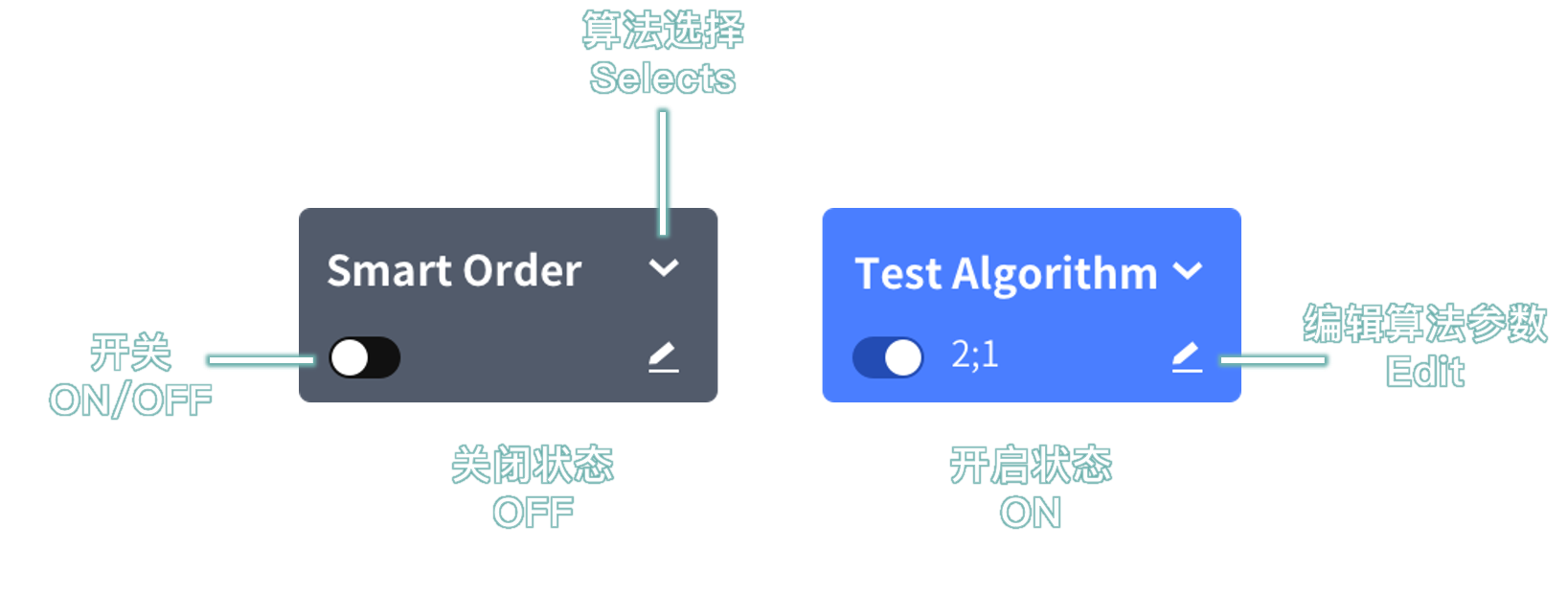
在 下单板 点击 Smart Order,在下拉框中选择 定时拆单。
填写定时拆单参数,点击 开始使用。
在 下单板 设置 委托价格 和 委托数量 后下单。
仅当 价格类型 选择 指定价 时,委托价格 生效。
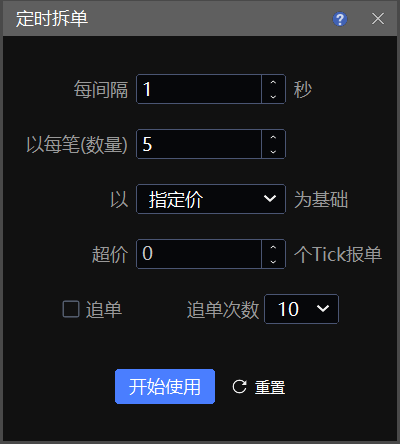
示例说明
以上图参数为例:
点击下单后,系统每隔 1 秒 发送一笔子单,按 最新价 + 0 Tick 的价格委托 5 手,直到全部委托数量发送完成。
参数说明
| 参数 | 说明 |
|---|---|
| 单笔间隔 | 每两笔子单之间的发送间隔。 |
| 价格类型 | 子单报单时使用的价格来源,可选择 最新价、排队价、对手价、指定价。 |
| 超价 | 在所选价格类型基础上增加或减少的 Tick 数。 |
| 每笔数量 | 每次发送子单的委托数量。 |
| 追单 | 勾选后,若子单未成交,系统会进入追单流程。每次追单按 追单超价 1 Tick 或 对手价 重新报单,最多追单次数不超过填写的 追单次数。 |
| 追单次数 | 单笔子单未成交后最多可追单的次数。 |
执行规则
- 到达设定的时间间隔后,下一笔子单会直接发出,不受上一笔是否成交影响。
- 如果 价格类型 选择 指定价,需要先在下单板填写 委托价格。
- 如果勾选 追单,子单未成交后会进入追单流程;追单达到填写的 追单次数 后,不再继续追单。
- 执行过程中如遇 错单(如资金不足、不在交易时间等)或 手动撤单,算法会自动终止。
算法列表管理
定时拆单创建后,可在 算法列表 窗口查看并管理。
位置:交易 → 算法列表 → Smart Order
使用前请注意:
- 算法单委托在本地运行。软件关闭后,算法不会继续执行,也不会自动保存记录;下次打开软件时不会显示历史记录。
- 可手动保存执行中或已暂停的算法单:右键算法单,选择 储存为任务下单。
- 也可在 定时管家 窗口设置自动保存。下次导入文件后可继续执行,详见 任务下单说明。
Split
Split is used for timed order splitting. It splits a large order into multiple child orders at fixed time intervals and sends them one by one.
Location: Trade Board → Smart Order → Split
⚠️ Risk Warning: Except for Server Trader, all InfiniTrader Smart Order Algos run locally and are triggered by market quotes or fill reports. InfiniTrader assumes no liability if an Algo fails to run properly due to network latency, disconnection, software shutdown, or similar reasons.
How to Use
On the Trade Board, click Smart Order and select Split from the drop-down list.
Set the Split parameters, then click Submit.
On the Trade Board, set the Price and Volume, then place the order.
The Price takes effect only when Price Type is set to Specified Price.
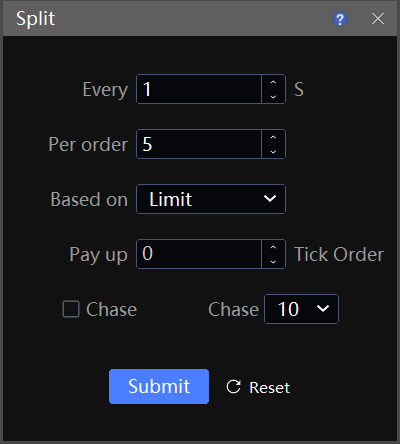
Example
Using the settings shown above:
After you place the order, the system sends one child order every 1 second at Last Price + 0 Tick, with 5 lots per order, until the full order quantity has been sent.
Parameters
| Parameter | Description |
|---|---|
| Single Order Interval | The interval between two child orders. |
| Price Type | The price source used when sending each child order. Available options include Last Price, Passive, Aggressive, and Specified Price. Passive means the best price on your side. Aggressive means the best price on the opposite side. |
| Pay Up | The number of ticks added to or subtracted from the selected Price Type. |
| Quantity per Order | The order quantity sent each time. |
| Chase | If selected, the system starts chasing the child order when it is not filled. Each chase order is resubmitted at either Chase Offset: 1 Tick or the Aggressive price. The maximum number of chase attempts does not exceed the configured Chase Count. |
| Chase Count | The maximum number of chase attempts for a child order after it remains unfilled. |
Execution Rules
- When the configured interval is reached, the next child order is sent directly, regardless of whether the previous child order has been filled.
- If Price Type is set to Specified Price, enter the Price on the Trade Board first.
- If Chase is selected, an unfilled child order enters the chase process. After the configured Chase Count is reached, the system stops chasing that child order.
- If the Algo encounters a Fail status, such as insufficient funds or orders outside trading hours, or if the order is manually canceled during execution, the Algo ends automatically.
Algo Management
After a Split Algo is created, view and manage it in Algos.
Location: Trade → Algos → Smart Order
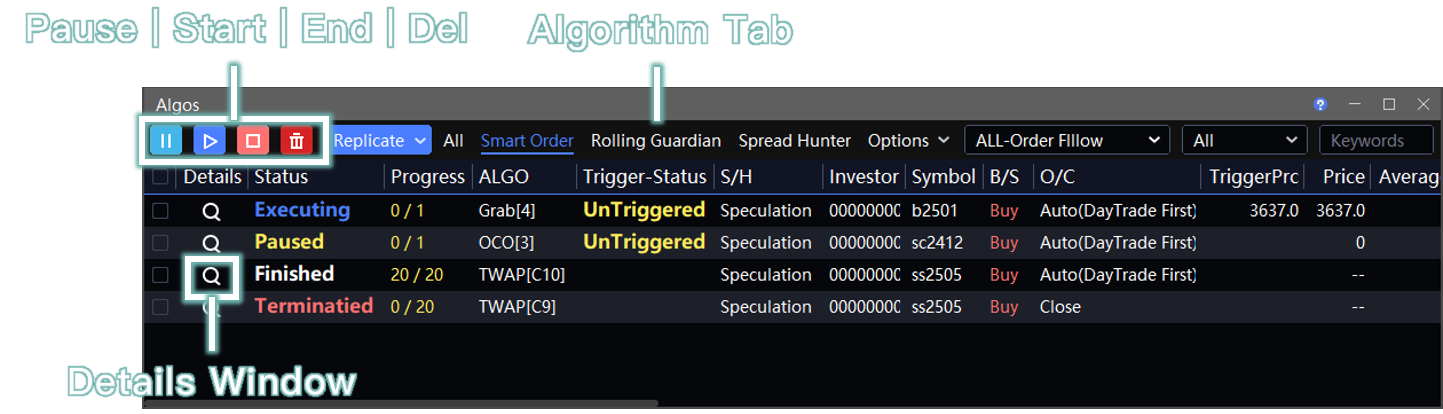
Before using this feature, note the following:
- Algos run locally. If the software is closed, they stop running and are not saved automatically. No historical records will be available the next time the software is opened.
- To save a running or paused Algo manually, right-click the Algo and select Save As Designated Order.
- You can also configure automatic saving in Time Master. Import the file next time to continue execution. For details, see Designated Trader.