窗口布局
本文介绍如何打开、移动和嵌入窗口,以及如何使用窗口联动、保存版面、配置多屏幕和调整表格栏位。
打开、移动与嵌入窗口
打开窗口
点击顶部菜单栏中的子菜单,即可打开对应的功能窗口。大多数功能窗口支持同时打开多个实例。

移动窗口
按住已嵌入窗口左上角的窗口名称  并拖动,即可将窗口从当前版面中分离并移动到其他位置。
嵌入或合并窗口
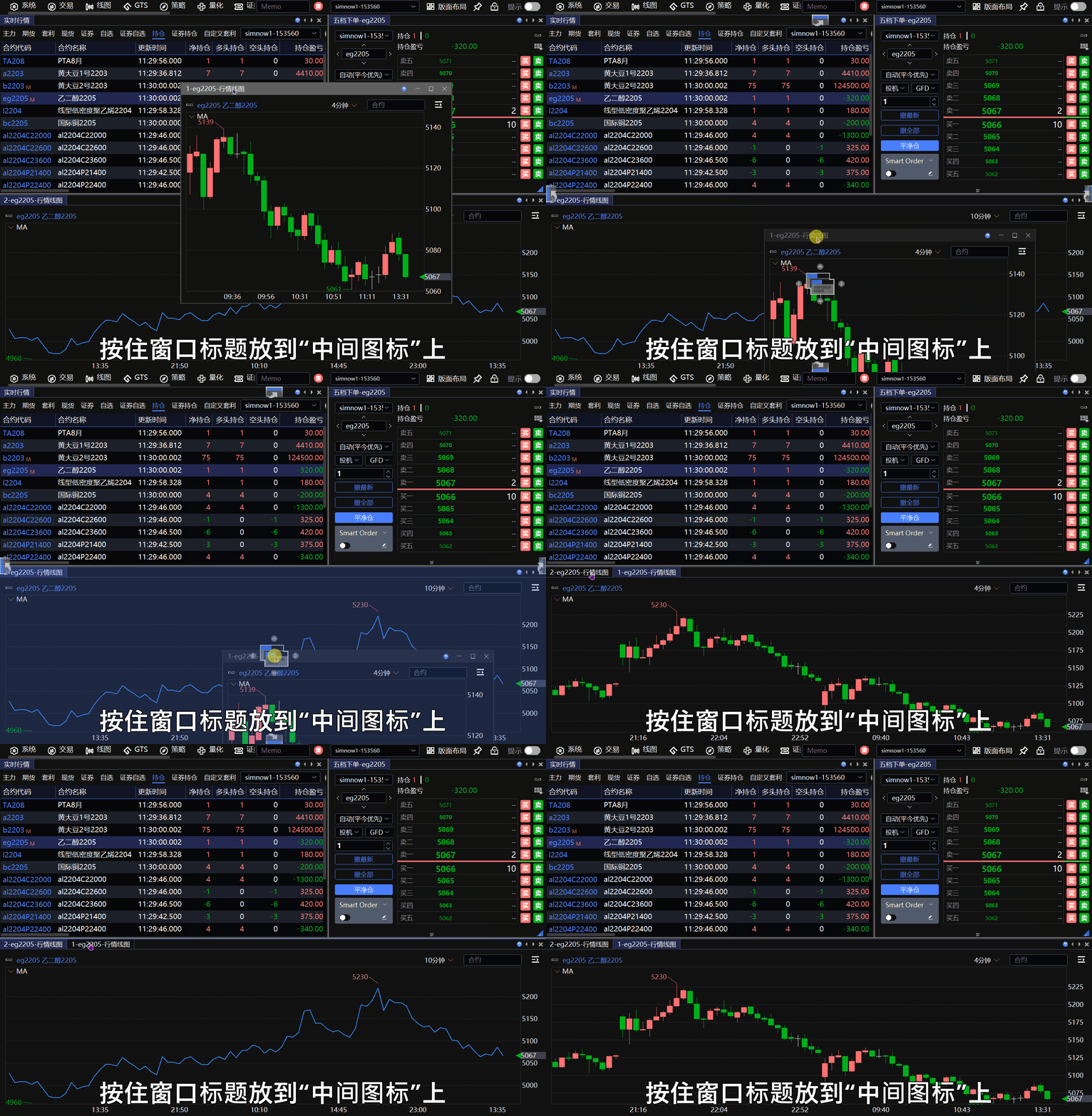
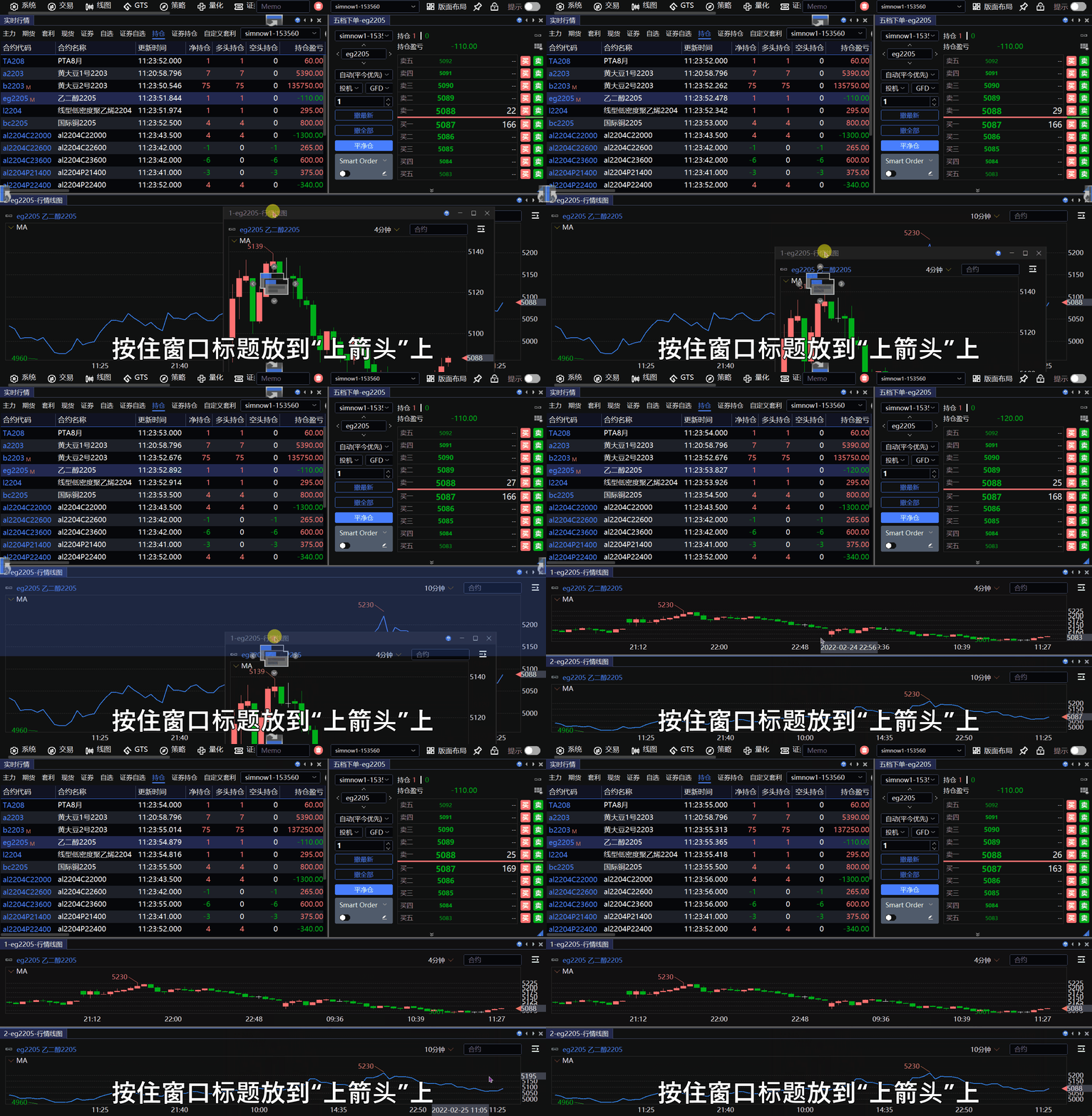
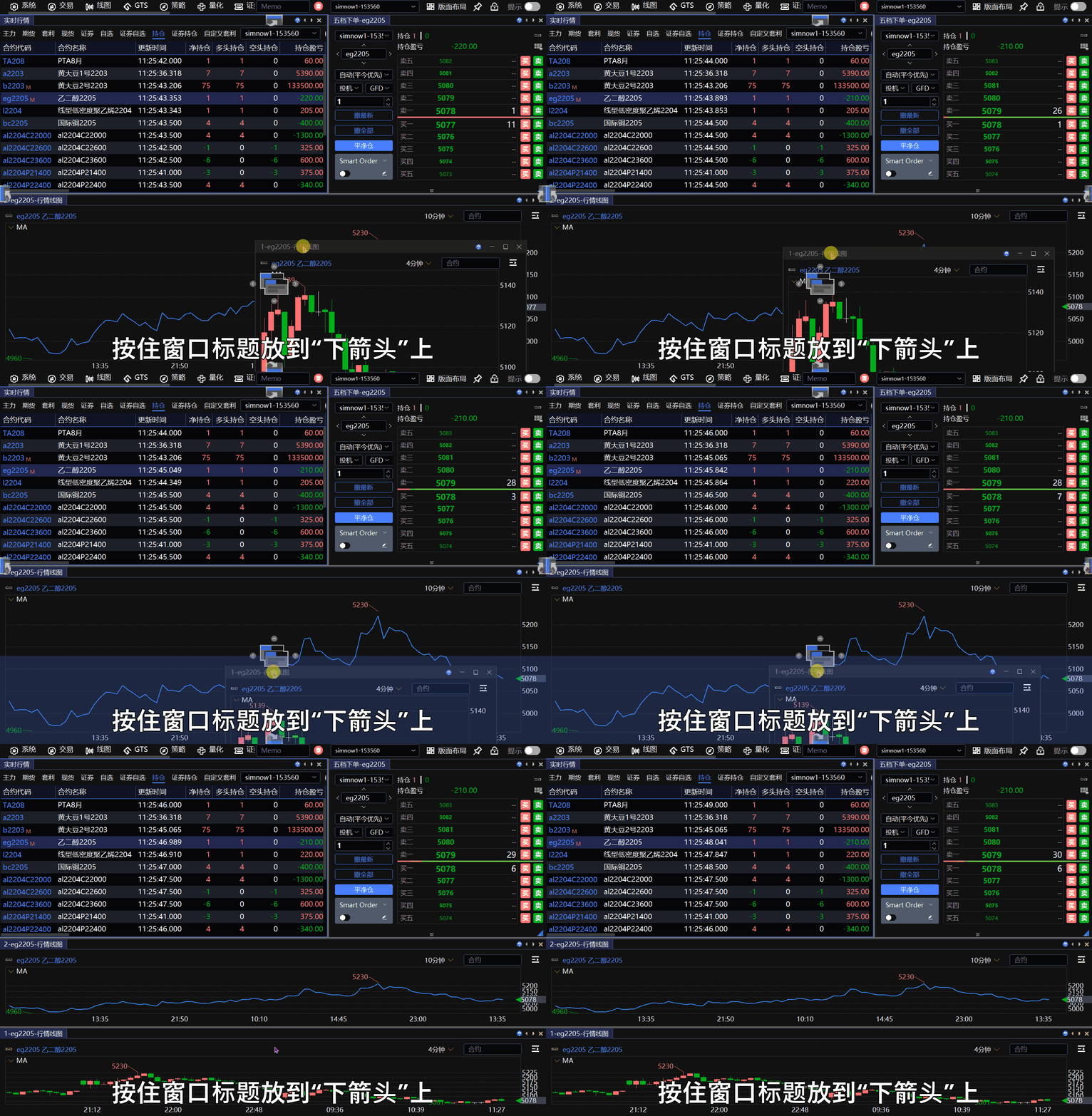
拖动窗口时,界面将显示嵌入位置图标。将鼠标移至目标图标并松开,即可将窗口嵌入相应位置。
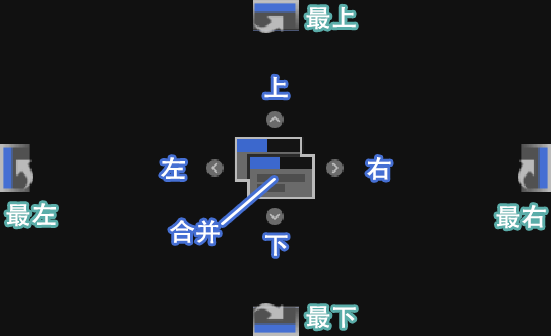
可选择以下嵌入方式:
将窗口与当前位置的窗口合并。
将窗口嵌入当前位置的上方、下方、左侧或右侧。
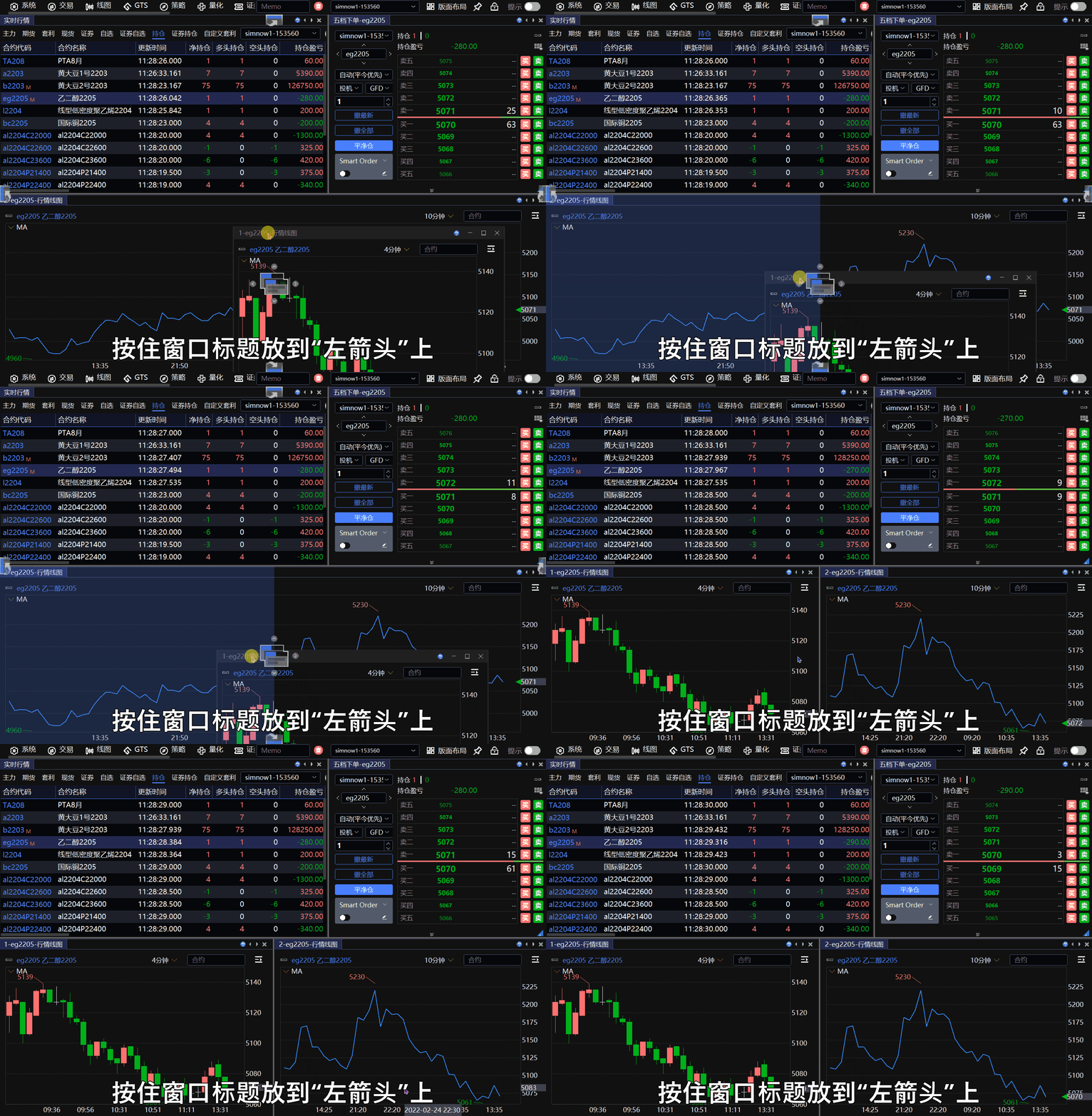
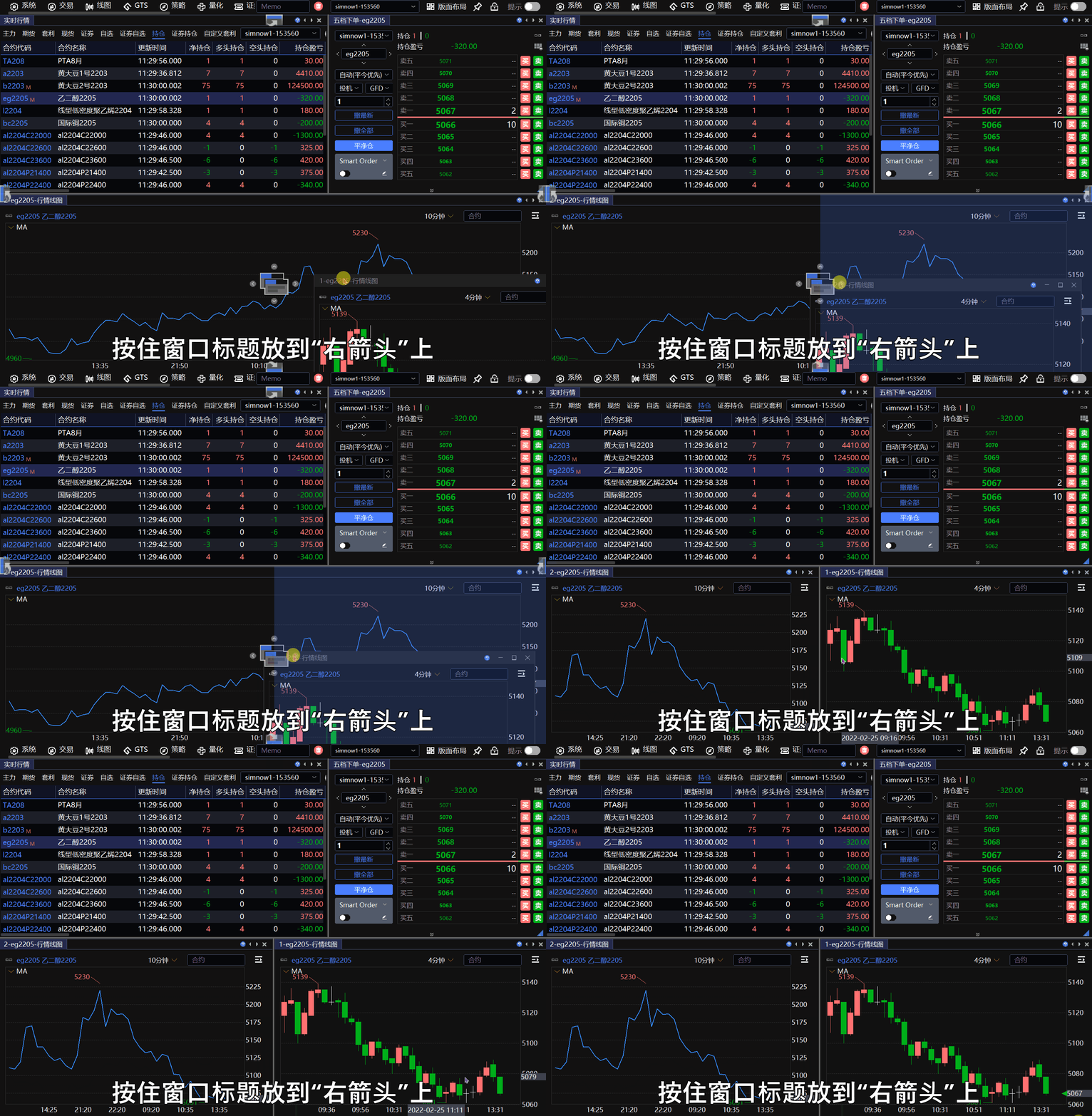
将窗口嵌入整个界面的顶部、底部、左侧或右侧。
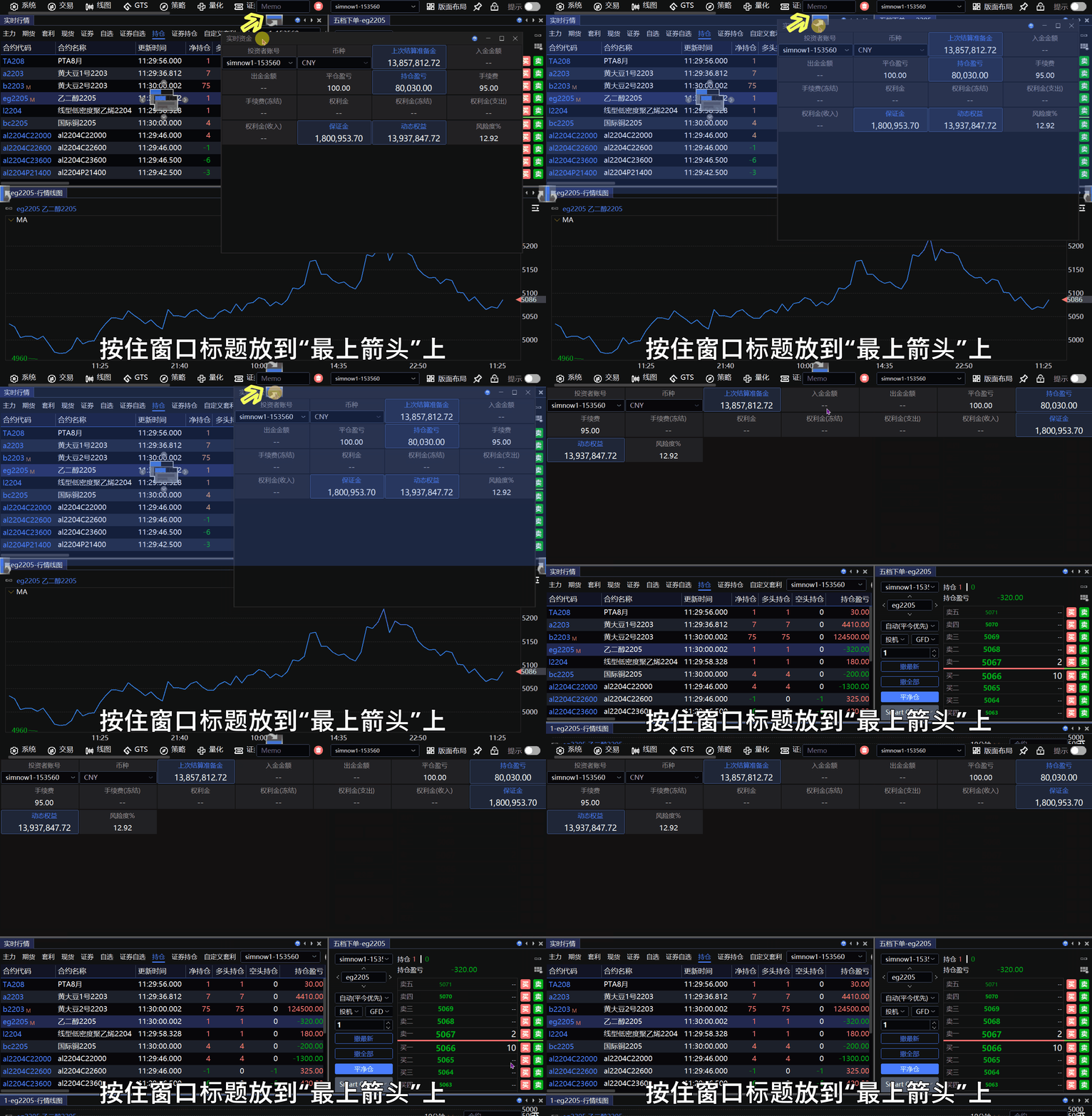
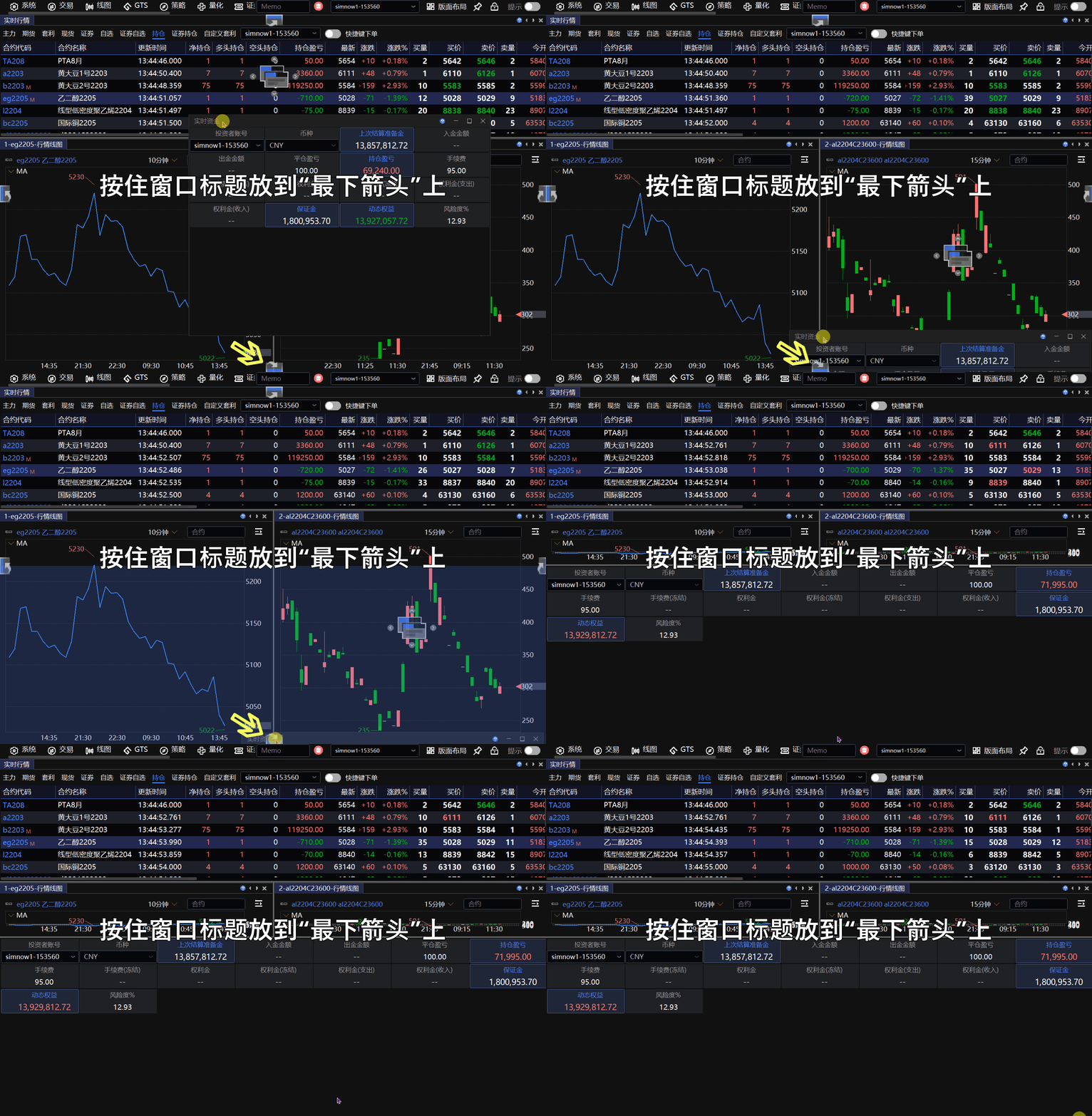
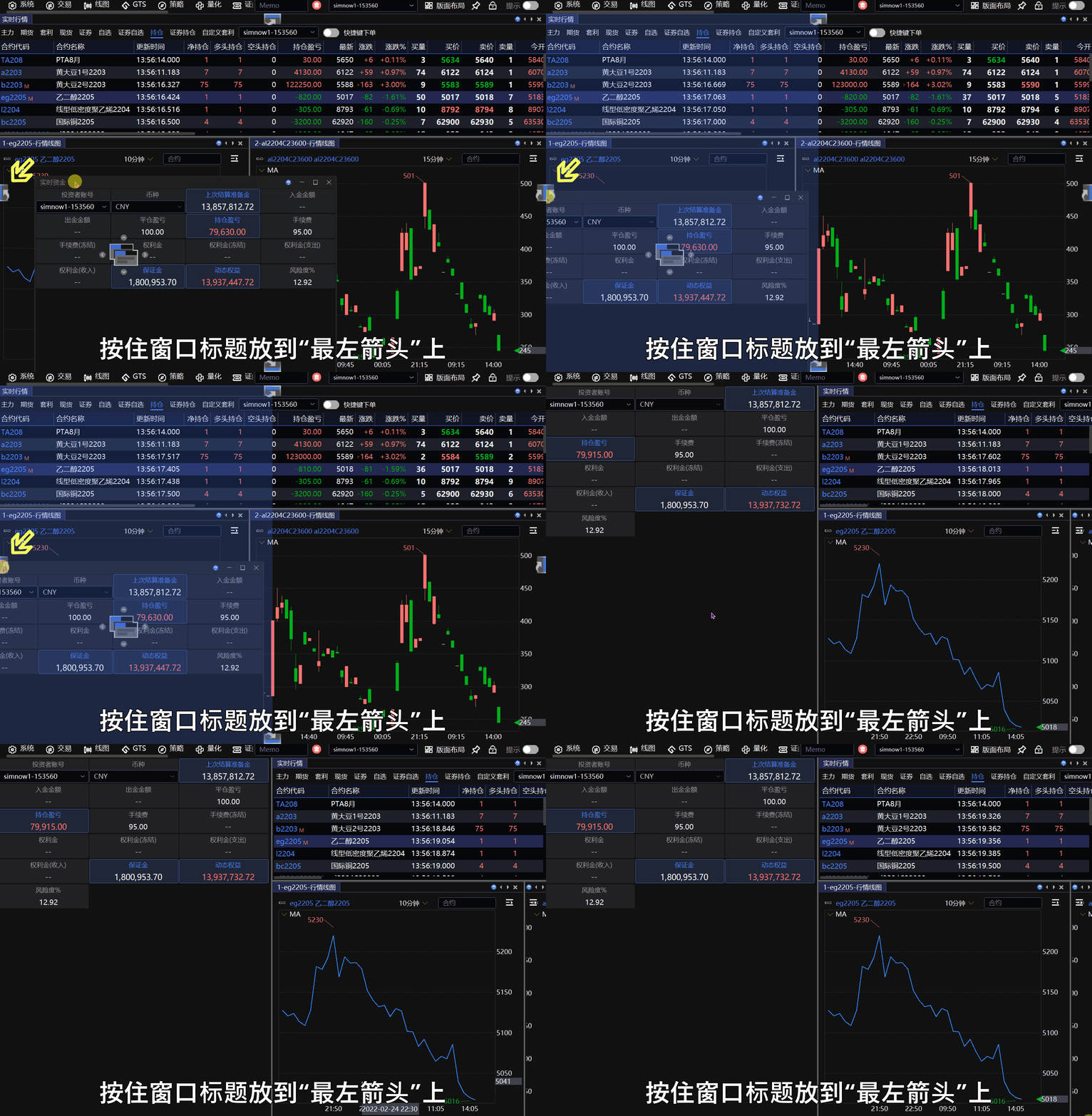
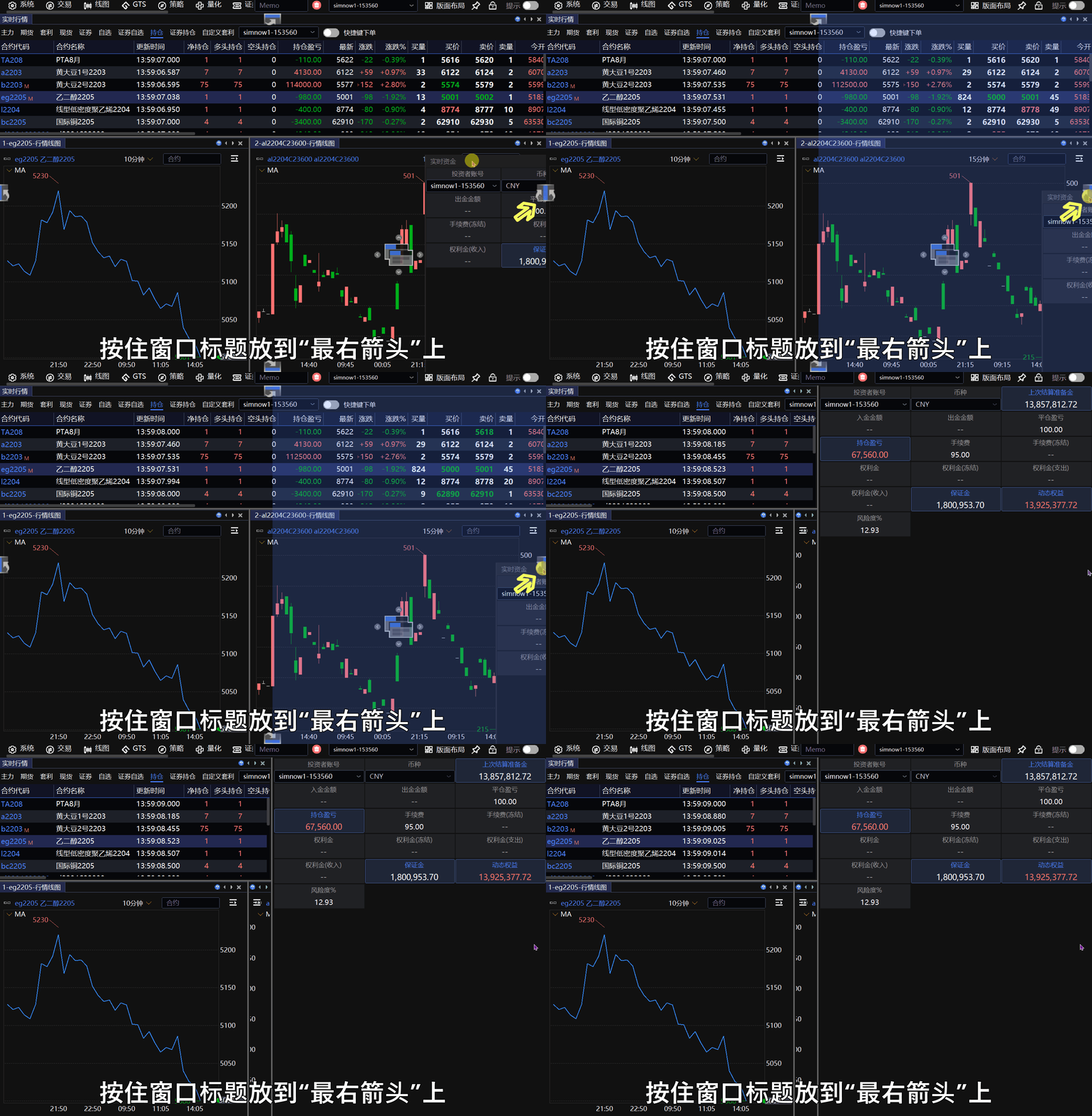
窗口联动
点击 联动按钮 可开启或关闭窗口联动。开启后,在实时行情、持仓等输出窗口中选择合约,下单板、线图等接收窗口将自动切换到相同合约。

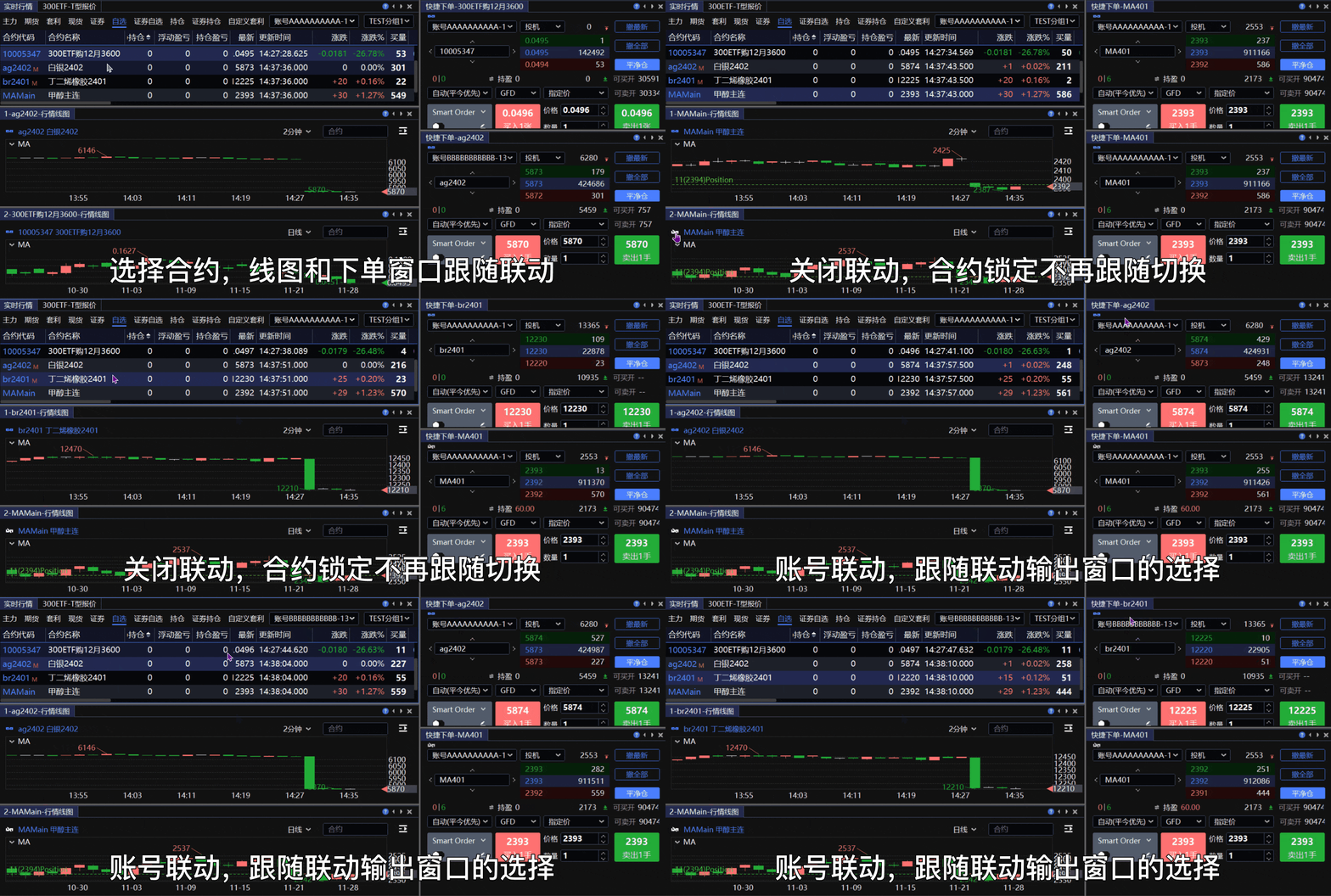
联动输出窗口包括实时行情、T 型报价、实时持仓和实时回报等。
联动接收窗口包括下单板和技术线图等。
关闭联动后,接收窗口中的合约信息将保持不变,不再受输出窗口影响。
除合约外,账号、投机套保属性等信息也可能同步。若需联动指定账号,请先在支持账号选择的联动输出窗口中选择相应账号。
保存和加载版面
关闭 InfiniTrader 后,软件会保存当前版面。下次启动时,默认恢复上次关闭前的版面布局。
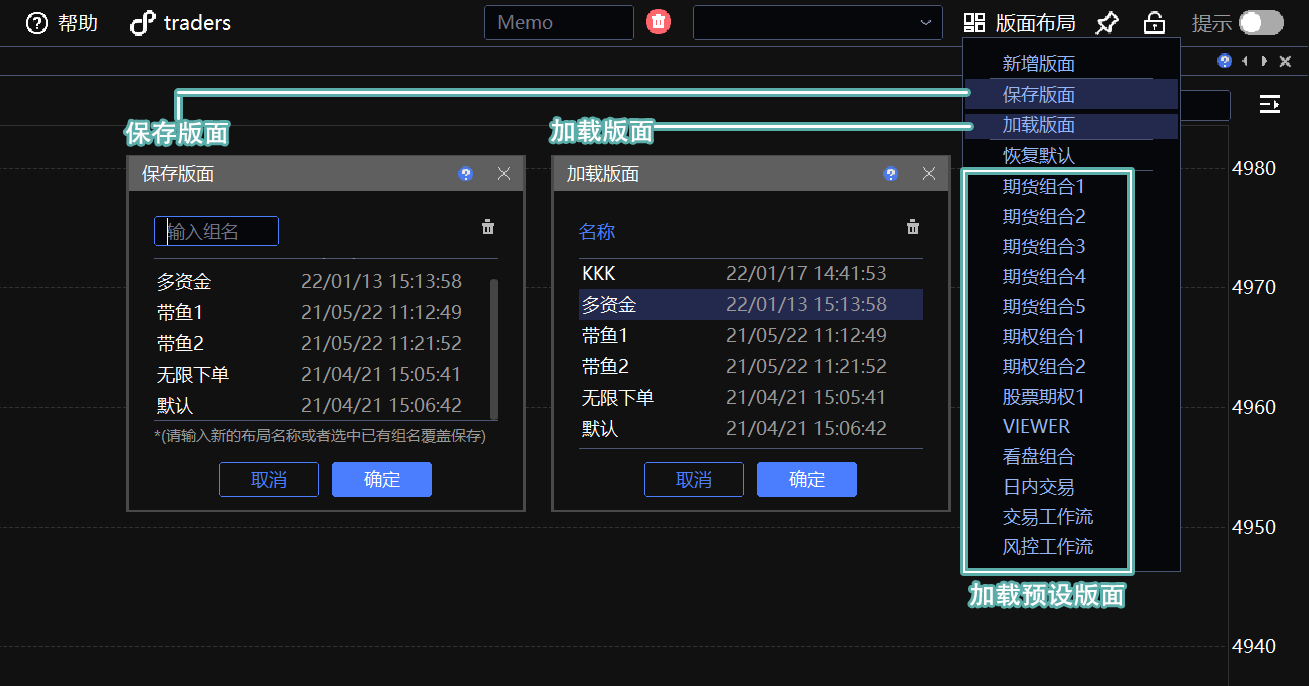
保存自定义版面
选择右上角的 版面布局 → 保存版面。
输入版面组名并确认。
加载自定义版面
选择右上角的 版面布局 → 加载版面,然后选择需要加载的已保存版面。
多屏幕设置
通过新增版面,可以在同一个 InfiniTrader 实例中配置多屏交易界面。
新增版面
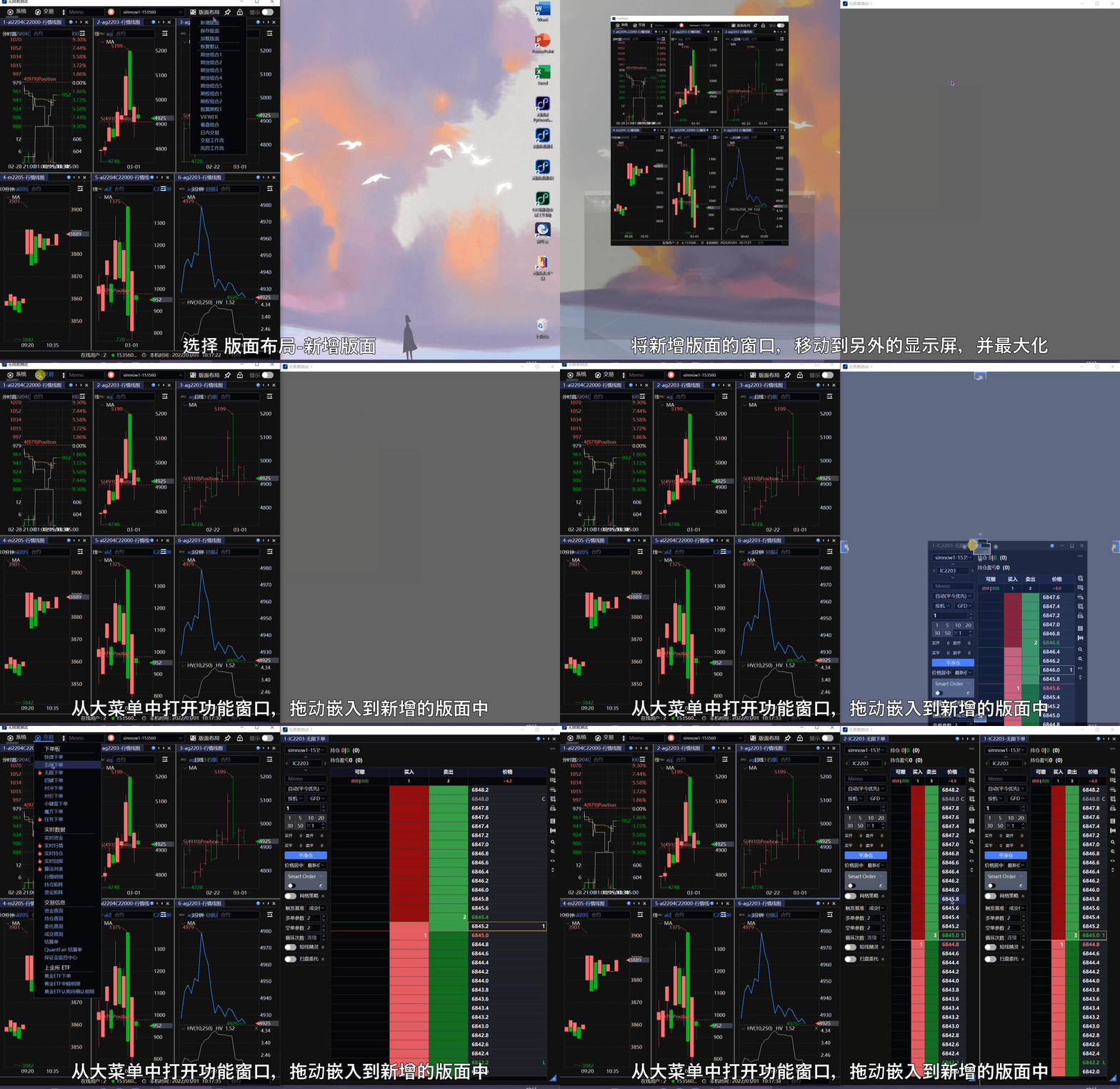
选择右上角的 版面布局 → 新增版面,打开一个空白版面。
将空白版面移动到另一台显示器并最大化。
从菜单中打开所需的功能窗口,然后调整窗口布局。
版面联动
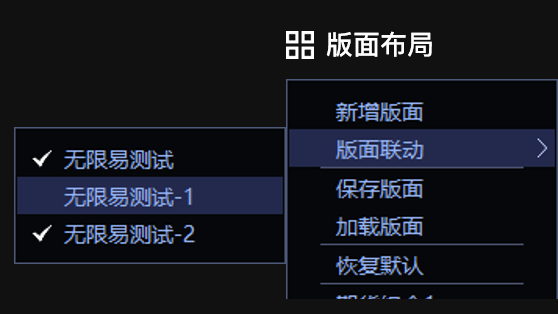
开启多个版面后,所有版面中的窗口默认同步联动合约信息。
如需让某个版面仅在内部联动,请打开 版面布局 → 版面联动,取消勾选该版面。
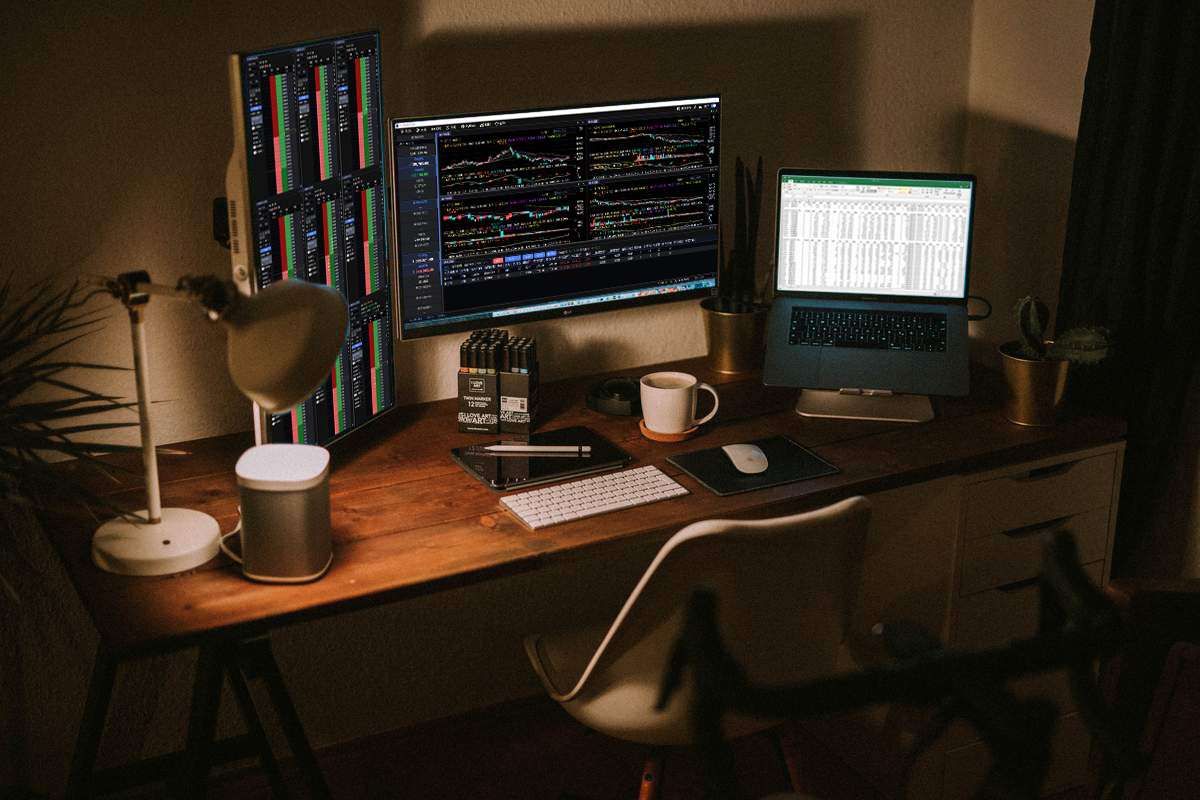
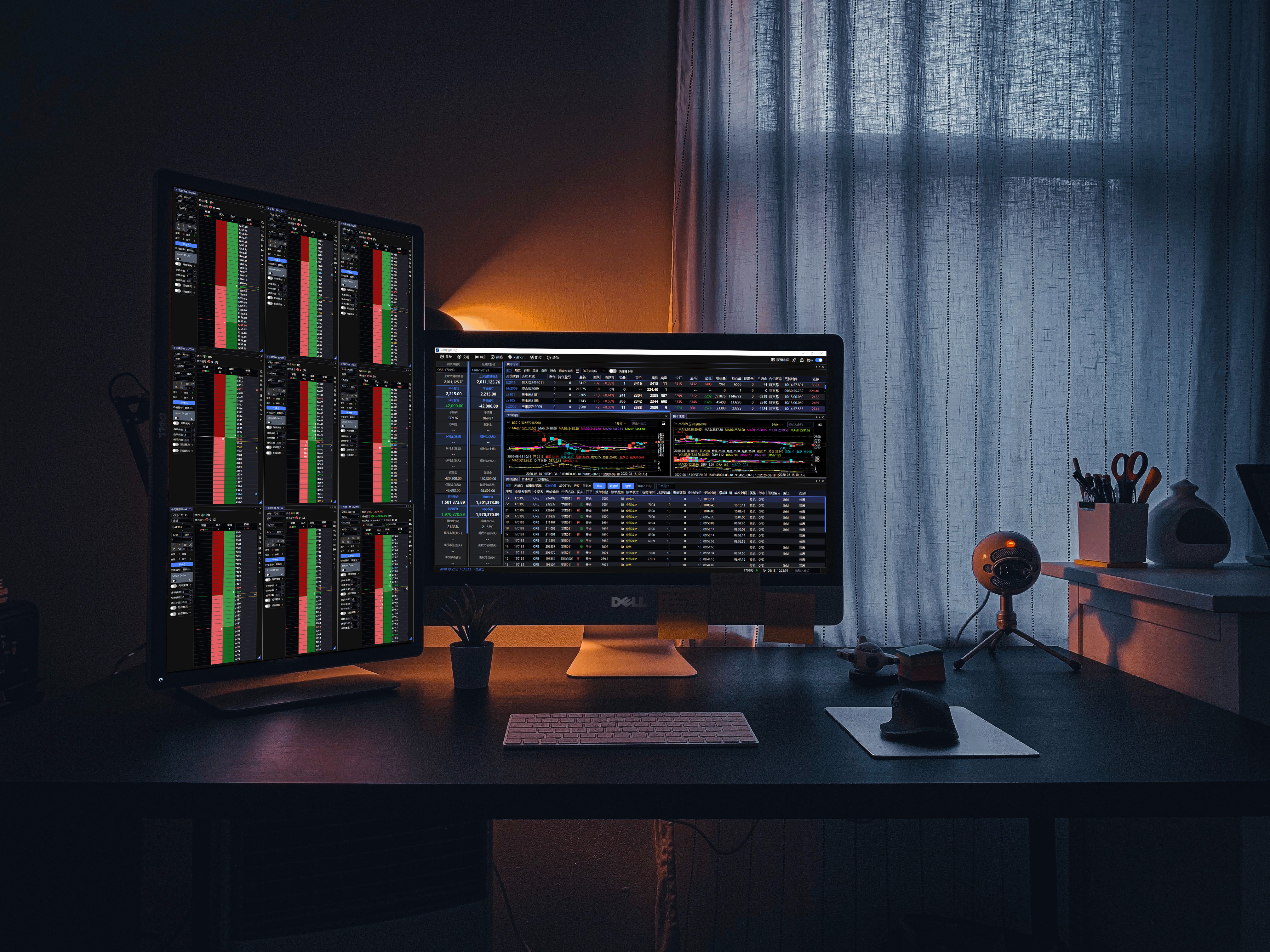
效果图
表格栏位设置
显示或隐藏列
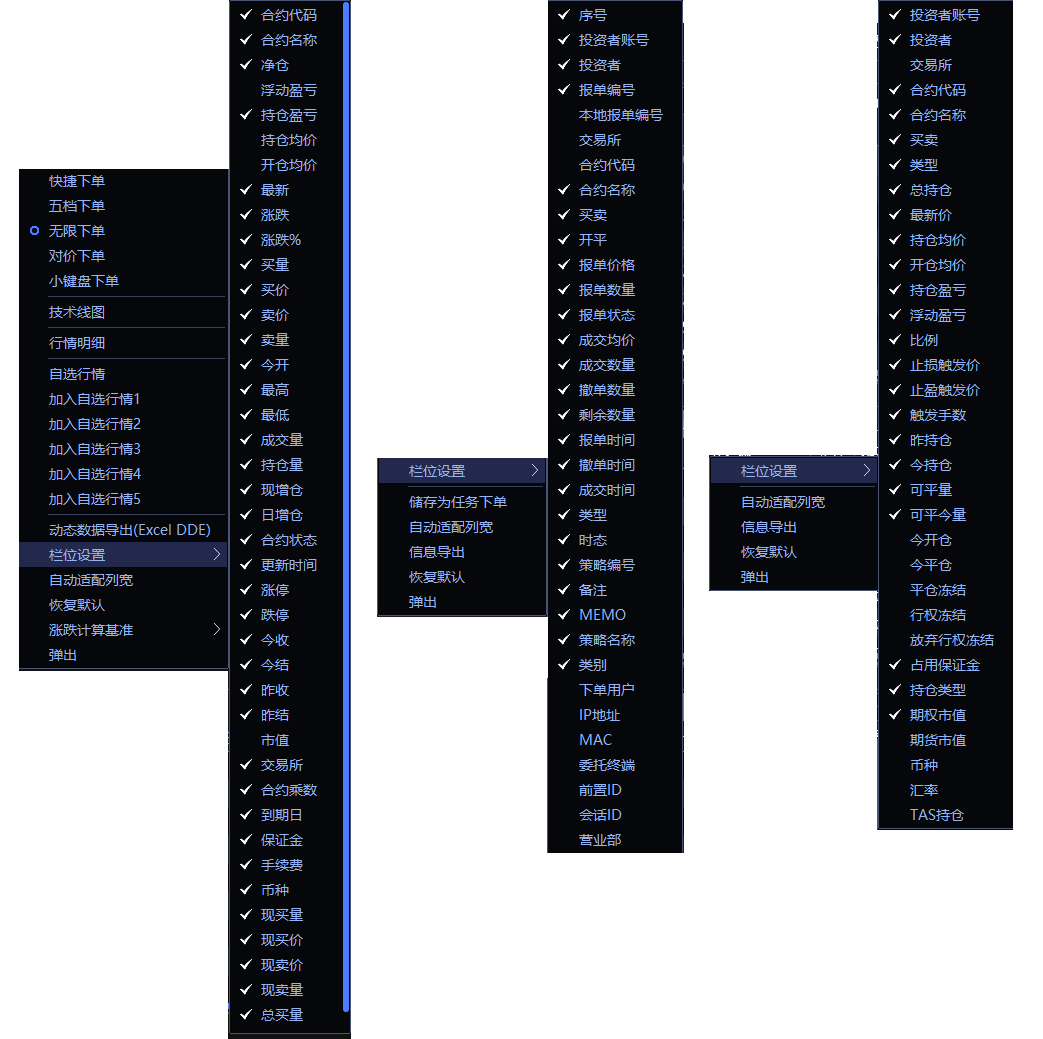
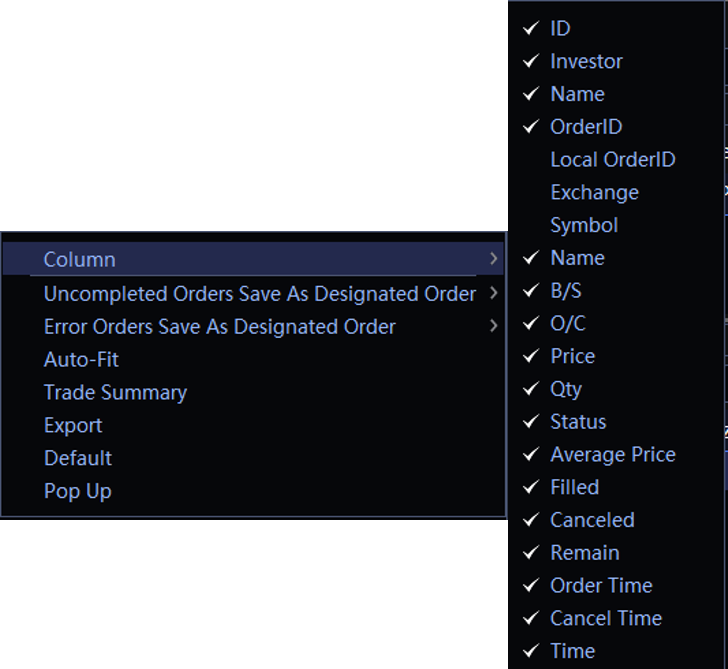
在表格窗口中点击右键,选择 栏位设置,然后勾选或取消勾选需要显示的列。
调整列顺序
拖动列标题,将其移动到目标位置。
调整列宽
拖动列标题之间的分隔线可手动调整列宽;也可以在右键菜单中选择 自动适配列宽。
Window Layout
This guide explains how to open, move, and dock windows, link windows, save templates, configure multiple monitors, and customize table columns.
Open, Move, and Dock Windows
Open a Window
Select an item from the top menu to open the corresponding window. Most window types can have multiple instances open at the same time.

Move a Window
Drag the window title  in the upper-left corner to undock the window and move it to another location.
Dock or Merge a Window
When you drag a window, docking icons appear on the interface. Move the pointer over the target icon and release the mouse button to dock the window.
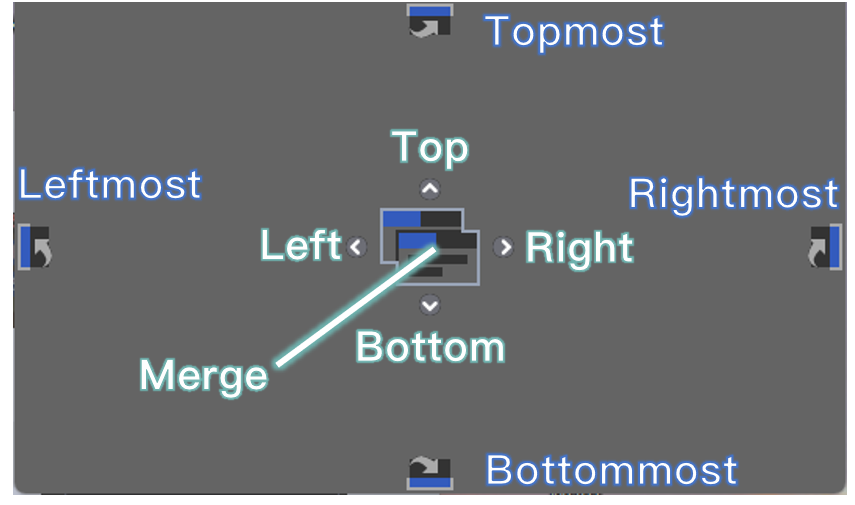
You can:
Merge the window with the window at the current location.
Dock the window above, below, to the left, or to the right of the current window.
Dock the window at the top, bottom, left, or right edge of the entire interface.
Window Linking
Click the Link button to enable or disable window linking. When linking is enabled, selecting an instrument in a source window such as Markets or Position automatically switches receiving windows such as Trade Board and Charts to the same instrument.

Source windows include Markets, Options Chain, Position, and Order Book.
Receiving windows include Trade Board and Charts.
When linking is disabled, the instrument in each receiving window remains locked and is not affected by source windows.
In addition to the instrument, the account and S/H (Speculation/Hedge) attribute may also be synchronized. To link a specific account, select that account in a source window that supports account selection.
Save and Load Templates
InfiniTrader saves the current layout when you close the application and restores it the next time you start it.
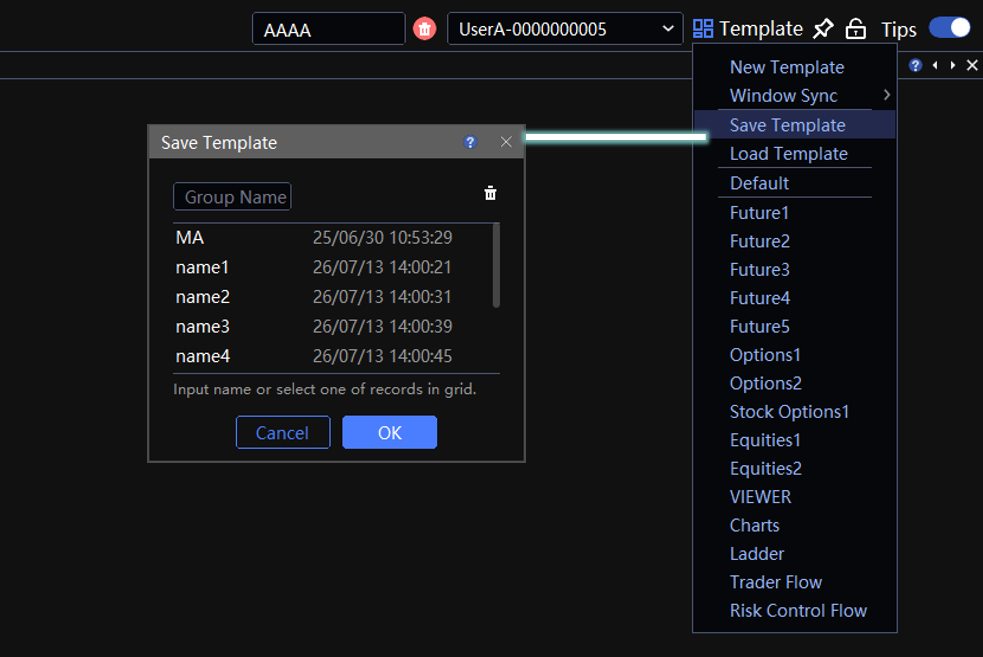
Save a Custom Template
In the upper-right corner, select Template → Save Template.
Enter a template group name, then confirm.
Load a Custom Template
In the upper-right corner, select Template → Load Template, then select a saved template.
Multiple-Monitor Setup
Add templates to create a multiple-monitor trading workspace within a single InfiniTrader instance.
Add a Template
In the upper-right corner, select Template → New Template to open a blank template window.
Move the blank template window to another monitor and maximize it.
Open the required windows from the menu, then arrange them in the new template.
Window Sync
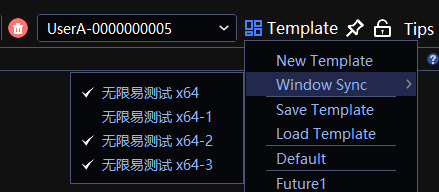
When multiple templates are open, windows across all templates are linked by default.
To restrict linking to windows within a specific template, open Template → Window Sync and clear the checkbox for that template.
Examples
Customize Table Columns
Show or Hide Columns
Right-click in the table, select Column, then select or clear the columns you want to display.
Reorder Columns
Drag a column header to reorder the columns.
Resize Columns
Drag the divider between column headers to resize a column. Alternatively, right-click and select Auto-Fit.