标准套利下单
位置:交易 → 标准套利下单
标准套利下单用于交易交易所定义的标准套利组合,标准套利组合可直接用于价差交易和移仓,组合成交由交易所撮合,可避免不利滑点。
大商所、郑商所、广期所、上期所、能源中心支持标准套利组合,但并非所有月份组合都会发布。具体可交易组合以软件窗口显示为准。
若目标合约没有标准套利组合,建议使用 自定义套利。
QuantFair、SimNow 模拟环境 / UAT 不支持标准套利,不会显示标准套利组合。请以正式环境显示为准。
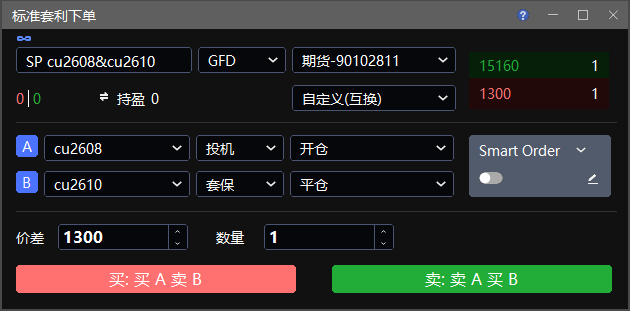
1. 设置套利组合
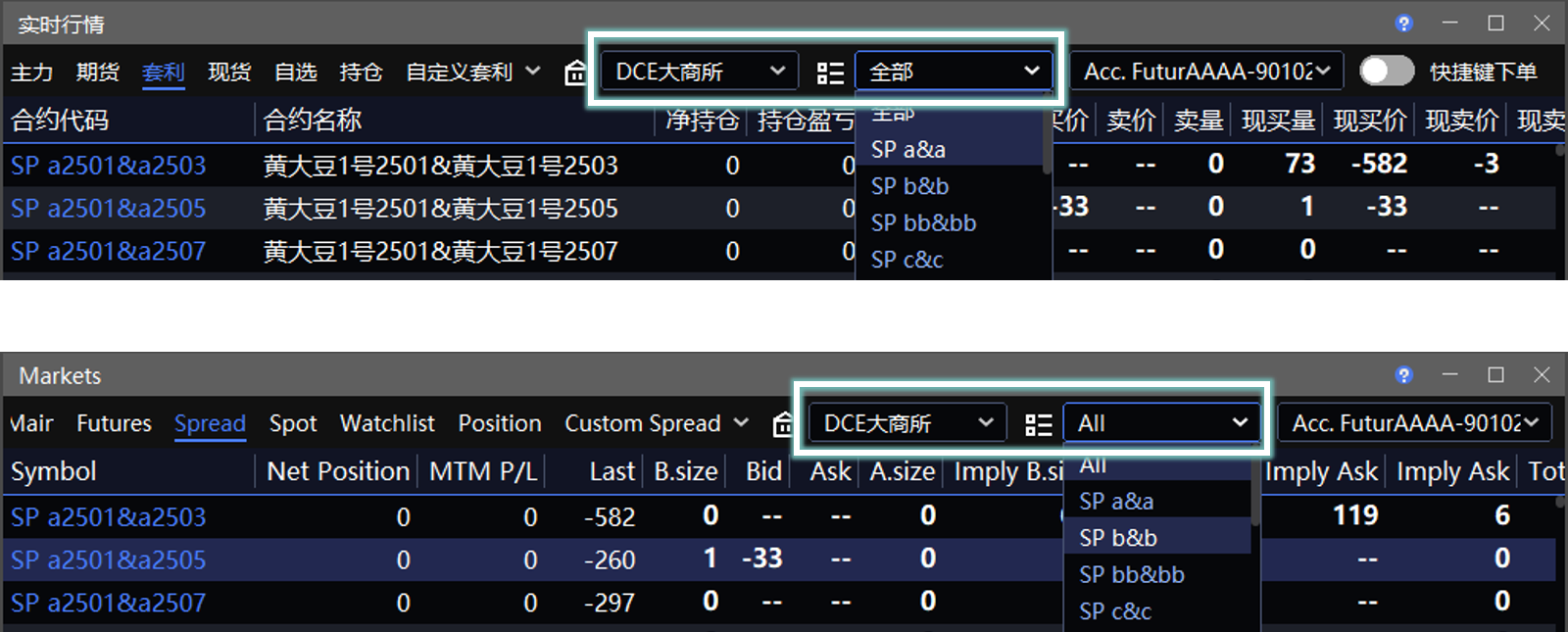
在 套利合约代码 中输入 SP、SPC 等套利组合代码,或通过 实时行情 → 套利 联动带入。
此时可以分别重新选择该品种下符合 SP/SPC 组合条件的 A 合约 和 B 合约:
选择 A 合约后,B 合约下拉列表仅显示可与该 A 合约组成标准套利组合的合约。
选择 B 合约后,A 合约下拉列表仅显示可与该 B 合约组成标准套利组合的合约。
2. 设置开平仓方式
开平仓总控 默认设置为 自动(平今优先)。各开平仓方式的详细含义参见 交易术语解释。
2.1 开平仓方式
| 选项 | 处理方式 | A/B 腿能否单独设置 |
|---|---|---|
| 自动(平今优先) | 系统根据可平量自动判断开平;上期所、能源中心优先平今 | 否 |
| 自动(上期平仓优先) | 系统根据可平量自动判断开平;上期所、能源中心优先平昨 | 否 |
| 一律开仓 | 组合按开仓处理 | 否 |
| 一律平仓 | 组合按平仓处理 | 否 |
| 一律平今 | A、B 腿均按平今处理,仅适用于上期所、能源中心合约 | 否 |
| 自定义 | 分别设置 A、B 腿的开仓、平仓或平今方向;可通过“一平一开”完成移仓 | 是 |
2.2 自动模式
自动(平今优先) 和 自动(上期平仓优先) 均根据可平量自动判断开平方式,但不同交易所的处理规则不同。
| 合约所属交易所 | 可平量检查方式 | 开平处理方式 |
|---|---|---|
| 上期所、能源中心 | 分别检查 A、B 腿的可平量 | 两条腿独立判断开平,可能采用不同的开平方向 |
| 其他交易所 | 综合检查 A、B 腿是否满足组合可平条件 | 两条腿均具有足够的对应可平量时,组合同时平仓;否则组合同时开仓 |
两个自动模式的区别仅适用于上期所、能源中心合约:
自动(平今优先):有可平量时,优先平今仓,再平昨仓;没有可平量时开仓。
自动(上期平仓优先):有可平量时,优先平昨仓,再平今仓;没有可平量时开仓。
其他交易所不区分平今仓和昨仓,因此两个自动模式的处理结果相同。
2.3 自定义与移仓
需要将一条腿的持仓移至另一条腿时,选择 自定义,分别设置 A、B 腿的开平仓方式,使一条腿平仓、另一条腿开仓。
| 合约所属交易所 | 移仓设置 |
|---|---|
| 上期所、能源中心 | 将移出腿设置为 平仓 或 平今,将移入腿设置为 开仓 |
| 其他交易所 | 将移出腿设置为 平仓,将移入腿设置为 开仓;系统按互换指令处理 |
例如,将 A 腿持仓移至 B 腿时:
上期所、能源中心合约:A 腿选择 平仓 或 平今,B 腿选择 开仓。
其他交易所合约:A 腿选择 平仓,B 腿选择 开仓。
⚠️ 移仓前,请确认移出腿具有足够的可平量。对于上期所、能源中心合约,还需根据持仓类型正确选择 平仓 或 平今。
3. 设置投保类型
A 腿的 投保类型 默认为 投机,也可以选择 套保,含义详见 交易术语解释。
| 合约所属交易所 | B 腿设置规则 |
|---|---|
| 非上期所、能源中心 | B 腿跟随 A 腿,不能单独修改 |
| 上期所、能源中心 | B 腿可以独立选择投机或套保 |
4. 设置时态
GFD、FAK、FOK 含义详见 交易术语解释。
| 组合类型 | 可选时态 | 默认值 |
|---|---|---|
| 普通组合 | GFD、FAK、FOK | GFD |
| 期权组合 | FAK、FOK | FAK |
如果从普通组合切换为期权组合,而当前时态为 GFD,系统将自动切换为 FAK。
5. 设置 Smart Order
关闭 Smart Order:按普通下单方式提交订单。
开启 Smart Order:按算法单方式提交订单。点击算法参数图标,设置相应参数。
⚠️ 提交前请确认所有 Smart Order 参数有效。具体参数及执行规则以所选算法为准。
6. 设置价差和数量
在 价差 中输入组合下单价差。
也可以点击行情中的买一价或卖一价,将对应价格带入 价差。
- 行情价格为空或显示为
--时,点击不会更新价差。
- 行情价格为空或显示为
在 数量 中输入组合下单数量。
7. 提交订单
确认组合及交易参数后,点击相应按钮:
买:买A卖B:买入 A 腿,同时卖出 B 腿。
卖:卖A买B:卖出 A 腿,同时买入 B 腿。
Standard Spread
Location: Trade → Standard Spread
Standard Spread is used to trade exchange-defined spreads. Exchange-defined spreads can be used directly for spread trading and position rolls. Orders are matched by the exchange, helping avoid adverse slippage.
DCE, CZCE, GFEX, SHFE, and INE support exchange-defined spreads, but not every contract-month combination is available. Refer to the spreads displayed in the application.
If an exchange-defined spread is not available for the target instruments, use Custom Spread.
QuantFair, the SimNow simulation environment, and UAT do not support exchange-defined spreads and therefore do not display them. Refer to the production environment for availability.
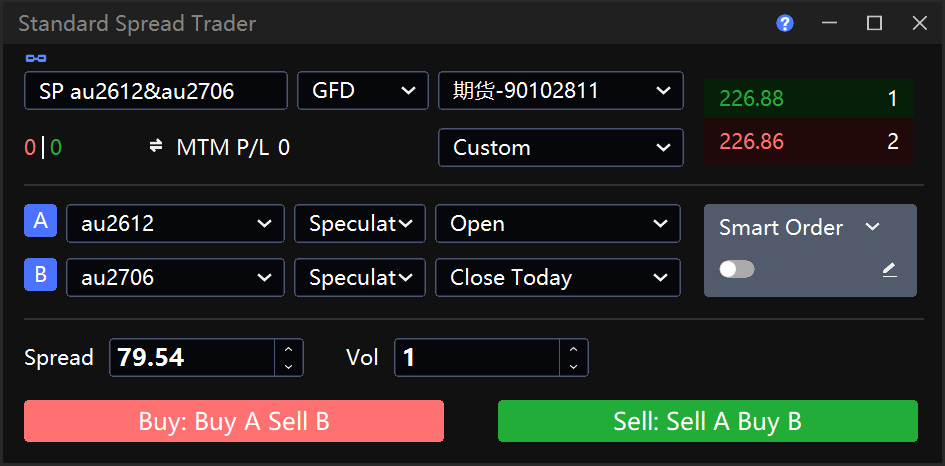
1. Set Up an Exchange-Defined Spread
Enter an SP, SPC, or another spread code in Spread Symbol, or link one from Markets → Spread.
You can then reselect the Leg A Instrument and Leg B Instrument that meet the SP/SPC combination rules for the product:
After you select the Leg A instrument, the Leg B list shows only instruments that can form an exchange-defined spread with it.
After you select the Leg B instrument, the Leg A list shows only instruments that can form an exchange-defined spread with it.
2. Set the Open/Close Mode
Open/Close defaults to Auto(DayTrade First). For details about each mode, see Trading Terms.
2.1 Open/Close Modes
| Option | Processing Rule | Edit Each Leg Separately |
|---|---|---|
| Auto(DayTrade First) | Determines whether to open or close based on the available close volume; prioritizes Close Today for SHFE and INE instruments | No |
| Auto(SHFE Close First) | Determines whether to open or close based on the available close volume; prioritizes closing yesterday's positions for SHFE and INE instruments | No |
| Open All | Processes the spread as Open | No |
| Close All | Processes the spread as Close | No |
| CloseToday All | Processes both legs as Close Today; available only for SHFE and INE instruments | No |
| Custom | Sets each leg to Open, Close, or Close Today; closes one leg and opens the other to roll a position | Yes |
2.2 Auto Modes
Auto(DayTrade First) and Auto(SHFE Close First) determine whether to open or close based on the available close volume. The processing rule depends on the exchange.
| Exchange | Available Close Volume Check | Open/Close Processing |
|---|---|---|
| SHFE and INE | Checks the available close volume of Legs A and B separately | Determines the Open/Close instruction for each leg independently; the two legs may use different instructions |
| Other exchanges | Checks whether Legs A and B together meet the close requirements for the spread | If both legs have sufficient available close volume, both legs are closed; otherwise, both legs are opened |
The two Auto modes differ only for SHFE and INE instruments:
Auto(DayTrade First): If close volume is available, closes today's positions first and then yesterday's positions. Opens the position if no close volume is available.
Auto(SHFE Close First): If close volume is available, closes yesterday's positions first and then today's positions. Opens the position if no close volume is available.
Other exchanges do not distinguish between today's and yesterday's positions, so the two Auto modes produce the same result.
2.3 Custom Mode and Position Rolls
To roll a position from one leg to the other, select Custom and set the Open/Close instruction for each leg so that one leg is closed and the other is opened.
| Exchange | Position Roll Setup |
|---|---|
| SHFE and INE | Set the outgoing leg to Close or Close Today, and set the incoming leg to Open |
| Other exchanges | Set the outgoing leg to Close and the incoming leg to Open; the system processes the order as a swap instruction |
For example, to roll a position from Leg A to Leg B:
SHFE and INE instruments: Set Leg A to Close or Close Today, and set Leg B to Open.
Instruments on other exchanges: Set Leg A to Close, and set Leg B to Open.
⚠️ Before rolling a position, make sure the outgoing leg has sufficient available close volume. For SHFE and INE instruments, select Close or Close Today according to the position type.
3. Set the Hedge Flag
The Hedge Flag for Leg A defaults to Speculation. You can also select Hedge. For definitions, see Trading Terms.
| Exchange | Leg B Rule |
|---|---|
| Exchanges other than SHFE and INE | Leg B follows Leg A and cannot be changed separately |
| SHFE or INE | Leg B can be set to Speculation or Hedge independently |
4. Set the TIF
For definitions of GFD, FAK, and FOK, see Trading Terms.
| Spread Type | Available TIF Options | Default |
|---|---|---|
| Regular spread | GFD, FAK, FOK | GFD |
| Option spread | FAK, FOK | FAK |
If you switch from a regular spread to an option spread while the TIF is GFD, the system automatically changes it to FAK.
5. Set Up Smart Order
Turn off Smart Order to submit a regular order.
Turn on Smart Order to submit an algo order. Click the algo settings icon to configure its parameters.
⚠️ Before submitting the order, make sure all Smart Order parameters are valid. The available parameters and execution rules depend on the selected algo.
For details, see Smart Order Guides.
6. Set the Spread and Volume
Enter the order spread in Spread.
You can also click BID1 or ASK1 in the market data to populate Spread with that price.
- If the market price is empty or displayed as
--, clicking it does not update Spread.
- If the market price is empty or displayed as
Enter the order volume in Vol.
7. Submit the Order
Verify the spread and order parameters, then click the applicable button:
Buy: Buy A Sell B: Buys Leg A and sells Leg B.
Sell: Sell A Buy B: Sells Leg A and buys Leg B.