账号 / 多账号管理
添加多账号、多账号登录,并设置多账号下单比例。
添加多账号
以下两种方法设置完成后,下次登录无需重新设置。只需输入 组长账号 登录,组员账号会跟随组长自动登录。
- 登录 组长账号 时,站点名称 必须与设置时一致,系统才会判定为同一个组长账号,多账号组员设置才会跟随该组长账号。
- 若因业务调整等原因导致 站点名称 发生变化,对应的多账号需要重新设置。
方法一:登录前设置

在登录页右上角,点击 多账号设置 图标,打开设置窗口。
点击窗口右上角
 号,输入账号、选择站点,新增 组长账号。
点击窗口右下角 新增组员,增加组员账号。
点击 登录。
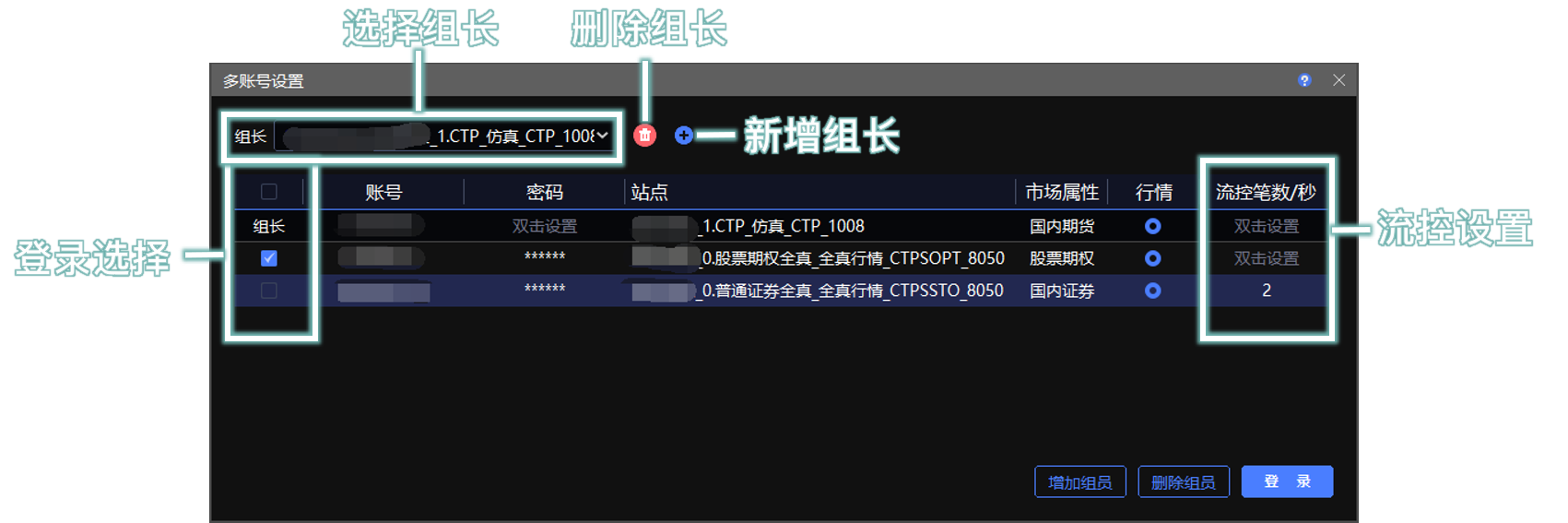
登录选择
点击  可勾选组员账号。只有勾选的账号才会登录,默认全勾选。
方法二:登录后设置(需要重启生效)
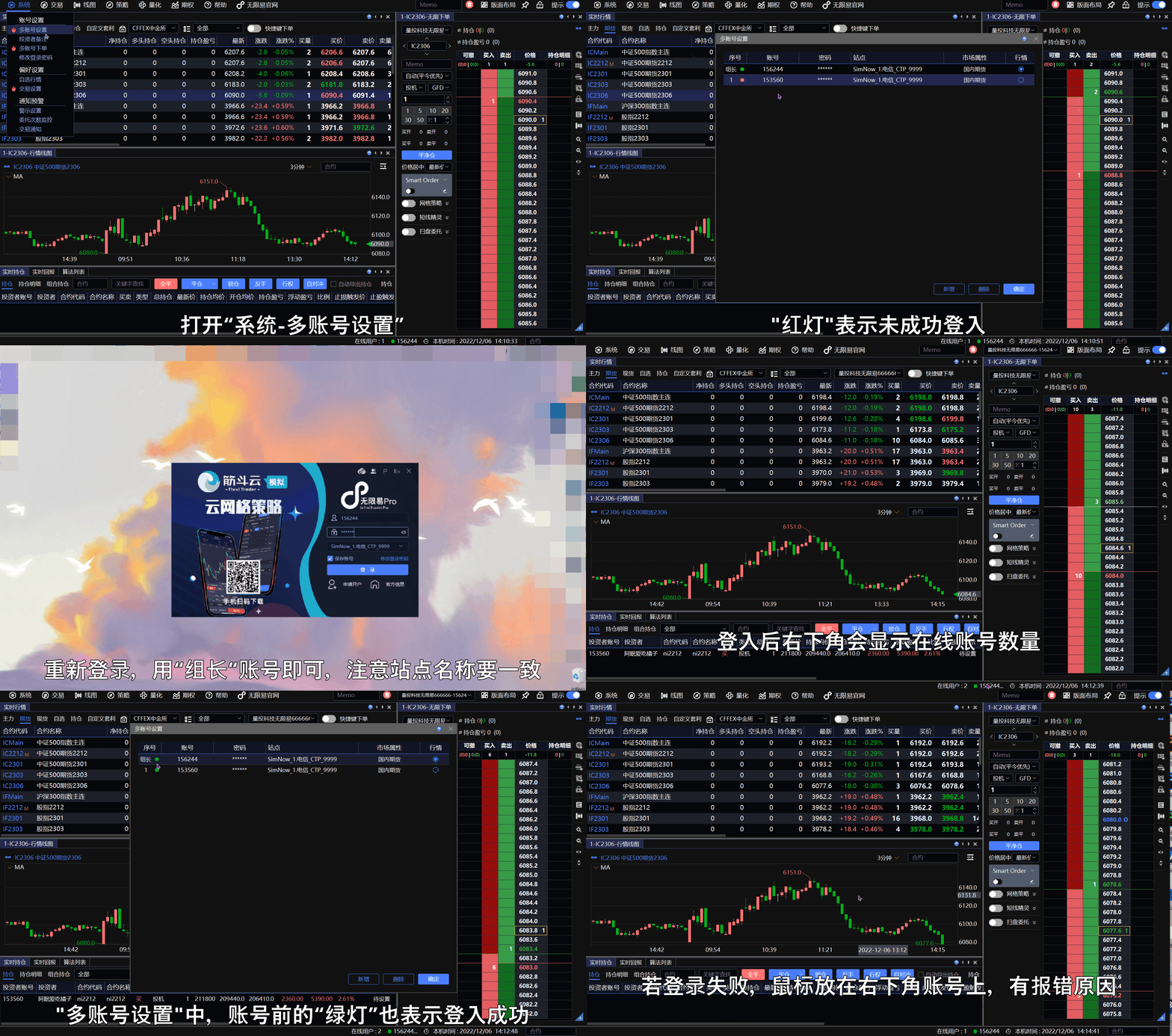
在 系统 菜单,打开 多账号设置 窗口。已登录的账号默认为 组长账号。
点击右下角 新增,添加组员账号。
完成后点击 确定。系统会提示 重启生效,重启客户端后重新登录即可。
账号设置重启生效;仅流控设置实时生效,无需重启。
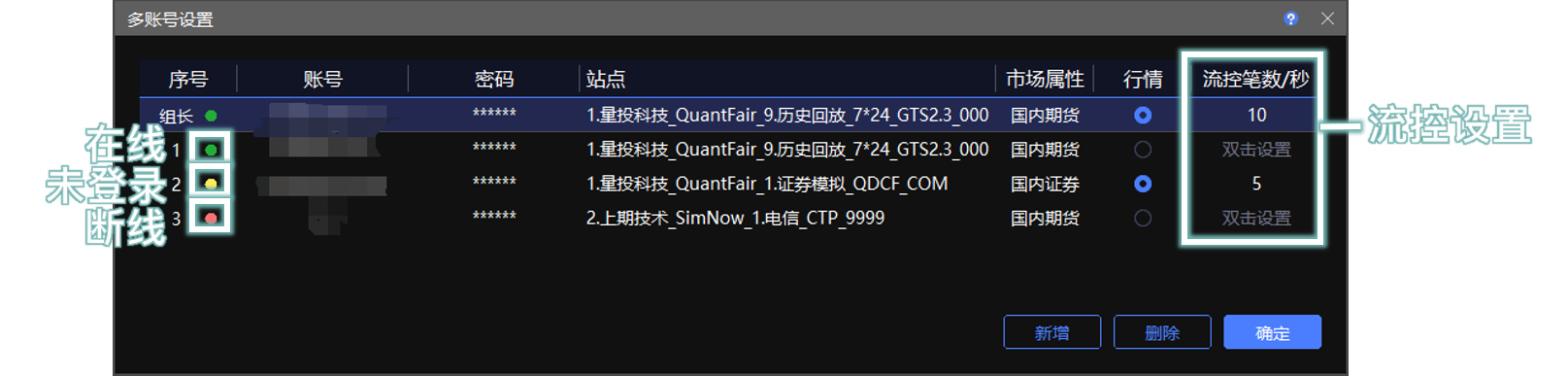
账号状态
在 多账号设置 中,账号前的颜色表示账号状态:
绿点:账号交易 在线。
黄点:账号 未登录,即登录页登录前未勾选。
红点:账号交易 断线。
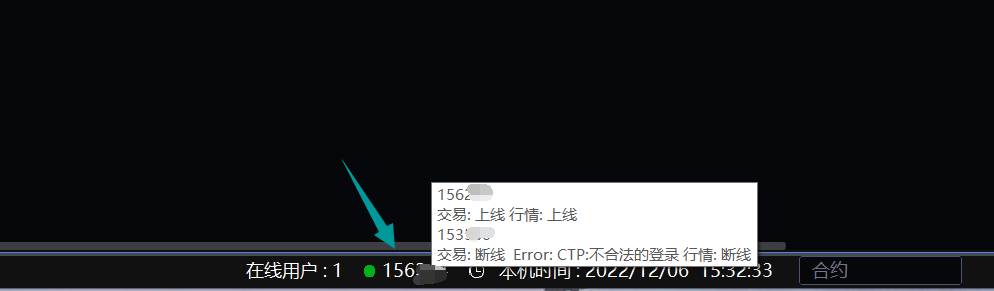
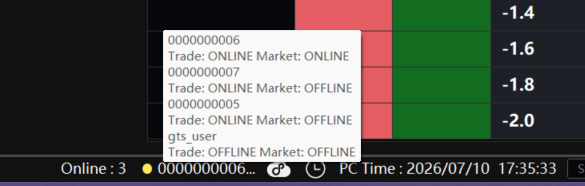
界面右下角会显示成功登录的在线账号数量。将鼠标放在账号上,可查看断线账号登录失败的原因。
站点与市场属性
账号需要与站点对应,详见 无限易下载与登录 说明。
市场属性根据站点自动匹配,分为国内期货、股票期权、普通证券等。
同一个市场属性只能选择其中一条作为行情源。例如:同为国内期货,有的站点行情包含五档行情,有的站点不包含,可选择包含五档行情的站点作为行情源。
流控设置
流控用于限制每秒最大委托笔数。若超过限制,超过部分会依次往后递延报单。默认不启用流控。
流控 会影响发单效率。委托回报分配完才会展示,不会即时展示,请谨慎设置。
使用账号组时,建议组合内各账号流控值保持一致。
账号组下单时,若组合内 各账号设置了不同流控值,原则上各控各的;但流控值容忍值大的账号,可能会被流控值容忍值小的账号挡住。
例如:AB 组合,流控值 A = 1,B = 2。虽然 B 为 2 笔 / 秒,AB 组合一起发单时,B 会被 A 挡住,过程中可能变成 1 笔 / 秒。
同理:AB 组合,流控值 A = 1,B 未设。虽然 B 不控,AB 组合一起发单时,B 会被 A 挡住,导致 B 不会在 1 秒内一次性发完所有笔数。
账号备注
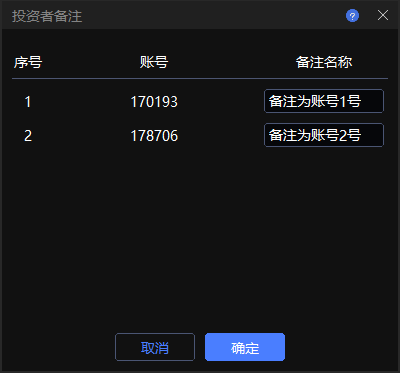
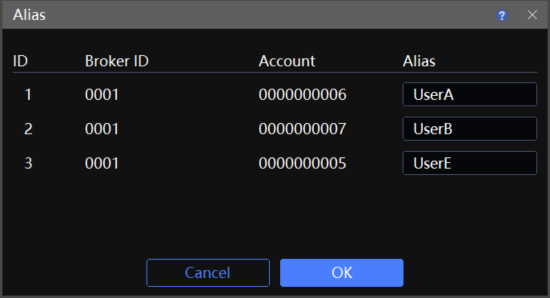
账号自定义备注昵称。
位置:菜单 → 系统 → 投资者备注
设置账号组下单和下单比例
位置:系统 → 多账号下单
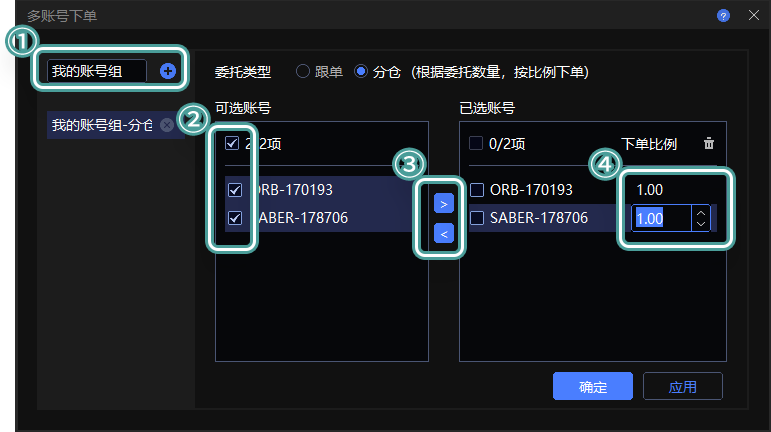
设置账号组
输入组名,点击
号创建分组。勾选或直接双击可选账号。
点击 > 图标添加账号。若步骤 2 中直接双击账号,则可省略此步骤。
双击设置每个账号的下单比例。
账号组委托类型
跟单:按委托数量 倍数下单,单账号报单手数 = 委托量 x 该账号下单比例。
分仓:按委托数量 分配下单,单账号报单手数 = 委托量 x(该账号下单比例 / 组内账号下单比例之和)。
若任一账号报单数量的最终计算结果存在小数:
先将数量计算结果向下取整。例如:计算结果为 1.67 时,取值为 1。
再将剩余手数按照占比从大到小的顺序,依次加 1,直至总委托数量分配完为止。
注:交割月合约存在最小下单量限制,请尽量避免使用会产生小数计算结果的比例设置,以免因委托数量不正确导致错单。
案例一
下单板数量输入 5,A 账号:B 账号下单比例设为 2:3。
跟单 数量 = A 委托 10,B 委托 15。
分仓 数量 = A 委托 2,B 委托 3。
案例二
下单板数量输入 50,A 账号:B 账号:C 账号下单比例设为 1.5:2:3.5。
跟单 数量 = A 委托 75,B 委托 100,C 委托 175。
分仓 数量 = A 委托 10,B 委托 14,C 委托 26。
案例三
下单板数量输入 1,A 账号:B 账号下单比例设为 0.55:1.99。
跟单 数量 = A 不委托,B 委托 1。
分仓 数量 = A 不委托,B 委托 1。
- 实际下单时,下单板账号选择 账号组,多账号下单才会生效。
- 必须组合内所有账号登录成功,且 通过无限易选择账号组 下单才生效,对其他客户端无效。
- 账号组下单的数量只认下单板设置,不受 交易设置 中 批量平仓 功能的影响。
Account / Multi-Account Management
Add multiple accounts, log in with multiple accounts, and set multi-account order ratios.
Add Multiple Accounts
After either setup method is completed, you do not need to configure it again the next time you log in. Log in with the Host account, and the member accounts will log in automatically with it.
- When logging in with the Host account, the site name must match the one used during setup. Otherwise, the account will not be recognized as the same Host account, and the member account settings will not follow it.
- If the site name changes due to business adjustments or other reasons, configure the corresponding multi-account settings again.
Method 1: Set Up Before Login
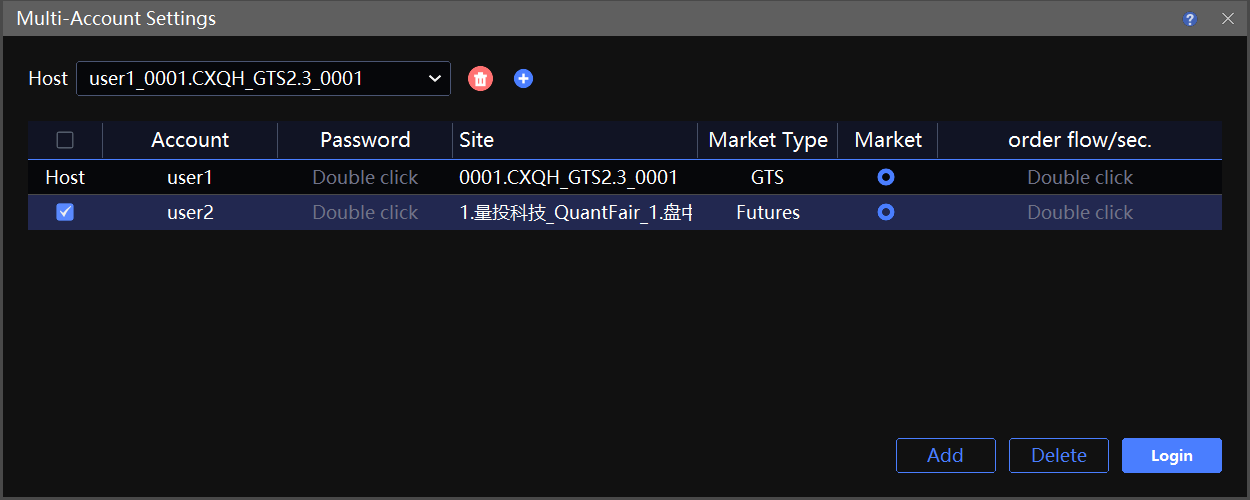
On the login page, click the Multi-Account Settings icon in the upper-right corner to open the settings window.
Click the
icon in the upper-right corner, enter the account, select the site, and add the Host account.Click Add in the lower-right corner to add member accounts.
Click Login.
Select Accounts for Login
Click to select member accounts. Only selected accounts will log in. All member accounts are selected by default.
Method 2: Set Up After Login (Restart Required)
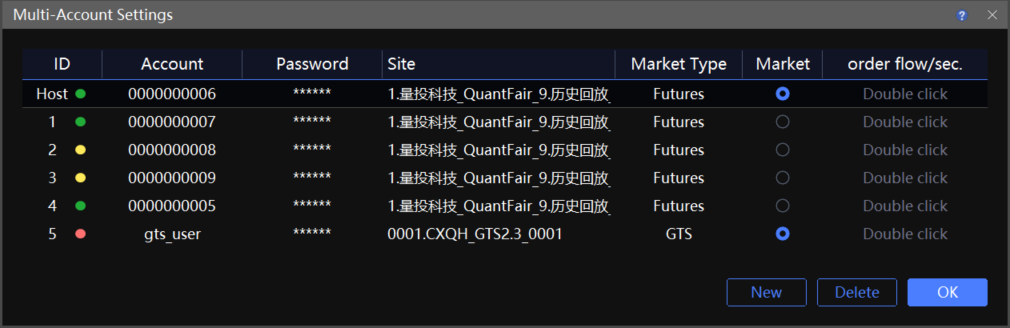
In Systems, open Multi-Account Settings. The account that is already logged in is used as the Host account by default.
Click Add in the lower-right corner to add member accounts.
After setup is complete, click OK. A restart required prompt appears. Restart the client and log in again.
Account settings take effect after restart. Only Order flow settings take effect in real time and do not require a restart.
Account Status
In Multi-Account Settings, the color before each account indicates its status:
A green dot means the trading account is online.
A yellow dot means the account is not logged in, because it was not selected on the login page before login.
A red dot means the trading connection is disconnected.
The lower-right corner shows the number of online accounts that logged in successfully. Hover over an account to view why a disconnected account failed to log in.
Site and Market Type
Each account must match its site. For details, see InfiniTrader Download and Login.
The market type is matched automatically based on the site, such as domestic futures, stock options, or standard securities.
For the same market type, only one site can be selected as the market data source. For example, when multiple sites are domestic futures sites, some may include five-level market data and some may not. You can select a site that includes five-level market data as the market data source.
Order flow Settings
Order flow limits the maximum number of orders per second. If the limit is exceeded, excess orders are delayed and sent later in sequence. Order flow is disabled by default.
Order flow affects order submission efficiency. Order responses are displayed only after allocation is complete, not immediately. Configure this setting with caution.
When using an account group, keep the Order flow value consistent across all accounts in the group whenever possible.
When placing orders with an account group, if accounts in the group have different Order flow values, each account is controlled by its own value in principle. However, an account with a higher tolerance value may be blocked by an account with a lower tolerance value.
Example: In an AB group, Order flow A = 1 and B = 2. Although B allows 2 orders per second, when A and B submit orders together, B may be blocked by A and may effectively become 1 order per second during the process.
Similarly, in an AB group, Order flow A = 1 and B is not configured. Although B has no Order flow limit, when A and B submit orders together, B may be blocked by A and may not send all orders within 1 second.
Account Alias
Customize account aliases.
Path: Menu → Systems → Alias
Configure Account Group Orders and Order Ratios
Path: Systems → Order Ratio
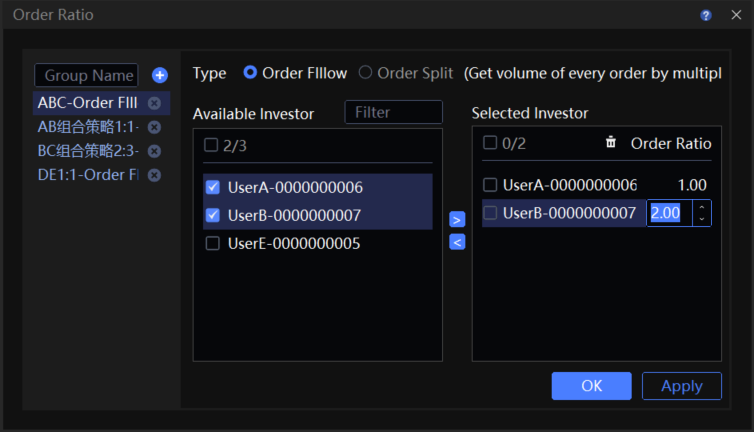
Configure an Account Group
Enter a group name, then click the
icon to create a group.Select accounts from the available account list, or double-click an account directly.
Click the > icon to add accounts. If you double-clicked accounts in step 2, skip this step.
Double-click to set the order ratio for each account.
Account Group Order Type
Order Follow: Orders are submitted by multiplying the order quantity. The order quantity for each account = order quantity x its order ratio.
Order Split: Orders are allocated by order quantity. The order quantity for each account = order quantity x (its order ratio / total order ratio of all accounts in the group).
If the final calculated quantity for any account contains decimals:
Round the calculated quantity down first. For example, if the result is 1.67, use 1.
Then add 1 lot at a time to accounts in descending order of ratio until the total order quantity is fully allocated.
Note: Contracts in the delivery month may have minimum order quantity restrictions. Avoid ratio settings that produce decimal results whenever possible, to prevent incorrect order quantities.
Example 1
Enter 5 in the Trade Board quantity field. Set the order ratio of account A to account B as 2:3.
Order Follow quantity = A submits 10, B submits 15.
Order Split quantity = A submits 2, B submits 3.
Example 2
Enter 50 in the Trade Board quantity field. Set the order ratio of account A, account B, and account C as 1.5:2:3.5.
Order Follow quantity = A submits 75, B submits 100, C submits 175.
Order Split quantity = A submits 10, B submits 14, C submits 26.
Example 3
Enter 1 in the Trade Board quantity field. Set the order ratio of account A to account B as 0.55:1.99.
Order Follow quantity = A does not submit, B submits 1.
Order Split quantity = A does not submit, B submits 1.
- Multi-account order placement takes effect only when an account group is selected in the account field on the Trade Board.
- This takes effect only when all accounts in the group are logged in successfully and orders are placed by selecting the account group in InfiniTrader. It does not apply to other clients.
- The quantity for account group orders follows only the Trade Board settings and is not affected by Batch Close in Trade Settings.