实时回报
实时回报 显示期货、期权的实时委托信息,不包括证券。证券委托请前往:菜单 → 证券 → 证券委托查询。
位置:菜单 → 交易 → 实时回报
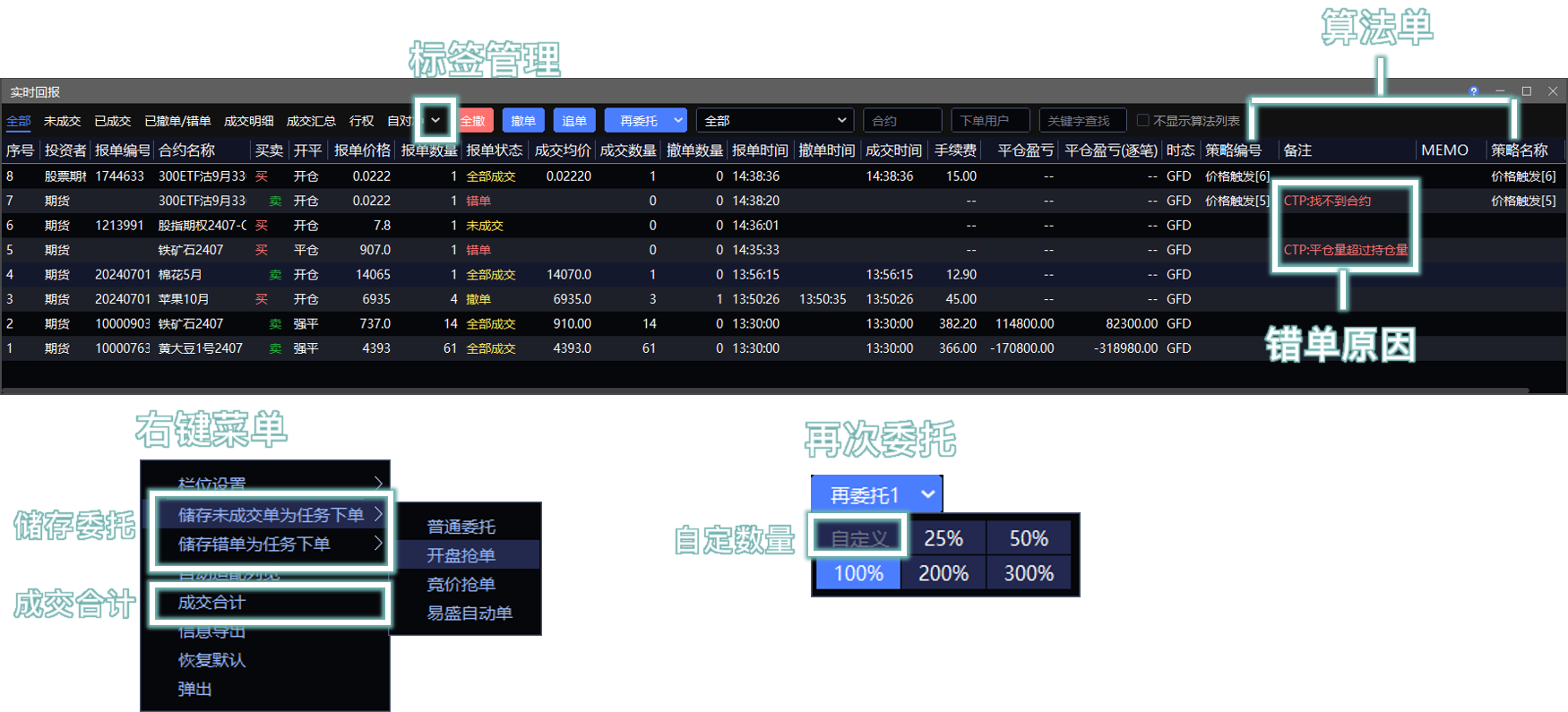
参数说明
报单状态
未成交:当前委托尚未成交。
全部成交:当前委托已全部成交。
部分成交:当前委托仅部分成交。
错单:委托下单失败,被上层系统驳回。可在 备注 字段中查看原因。
撤单:当前委托已撤销。
发送中:由于网络原因,客户端尚未收到上层系统的响应。委托可能已发送成功,也可能尚未发送。请重启客户端并确认委托状态。
盈亏
平仓盈亏:采用逐日盯市方式计算当日盈亏。昨仓根据 结算价 与 平仓价 计算;今仓根据 开仓价 与 平仓价 计算。
平仓盈亏(逐笔):采用逐笔对冲方式,根据 开仓价 与 平仓价 计算历史盈亏。
其他交易参数
时态:委托的有效方式,包括 GFD、FAK、FOK 和 GIS。
类别:委托的交易属性,包括投机和套保。
手续费:根据上层柜台返回的费率计算。可在 实时行情 窗口中单击 手续费 字段查询费率。计算结果可能与结算单存在差异,请以结算单为准。

有关时态、类别等参数的详细说明,请参阅 交易术语解释。
标签页
可在页面上方切换以下标签页。点击 ⋁ 打开标签管理,可设置标签的显示或隐藏状态。
全部:显示当日所有类型的委托。
未成交:显示未成交的挂单。双击列表行可撤单。
已成交:按委托笔数显示全部成交和部分成交的委托。
已撤单/错单:显示已撤销和失败的委托。错单原因在 备注 字段中以红色显示。
成交明细:按成交编号显示已成交的委托明细。
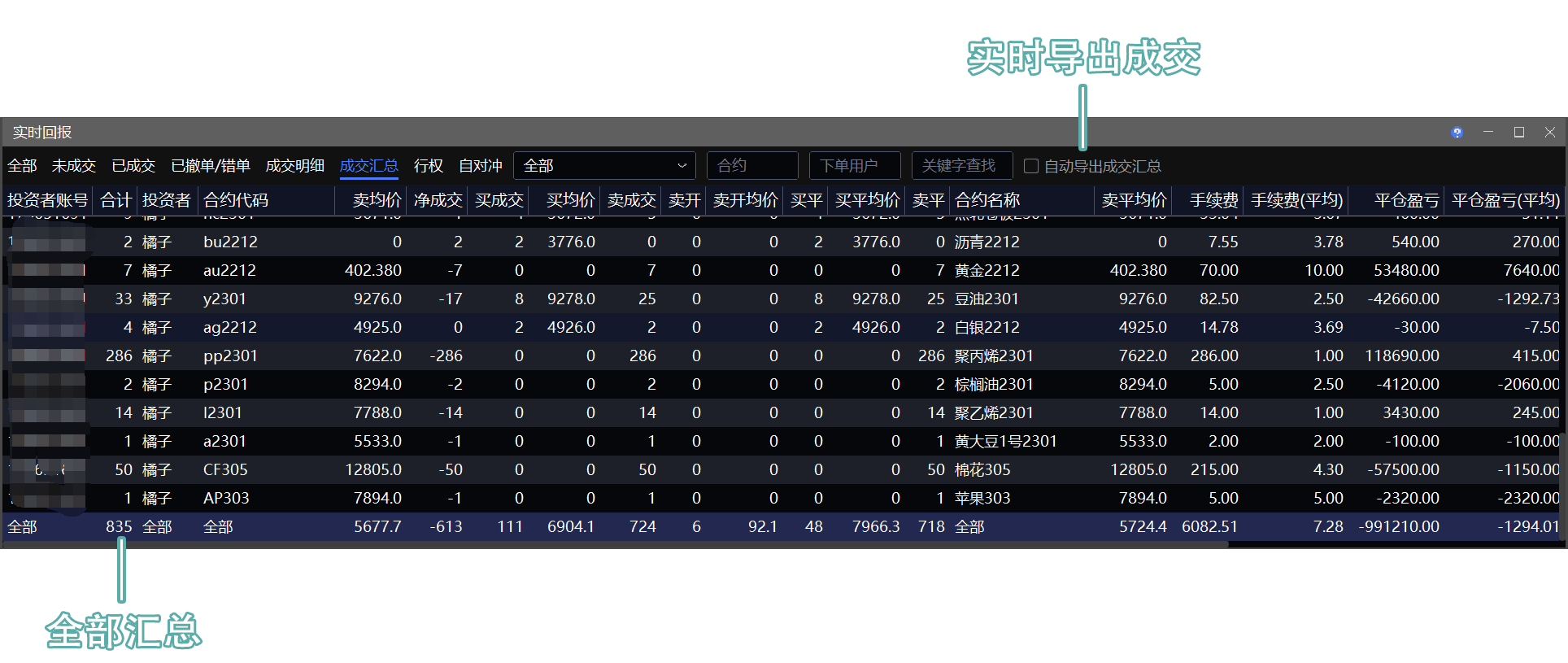
成交汇总:按合约汇总显示当日成交数量、成交均价、手续费和盈亏等信息。
行权:显示期权合约当日的行权申请记录。
自对冲:显示期权合约当日的自对冲申请记录。
列表操作
排序与显示
调整列顺序
拖动列标题,可调整列的显示顺序。
隐藏部分列
右键单击表格中除表头外的区域,在菜单中选择 栏位设置。勾选需要显示的列,取消勾选需要隐藏的列。
调整列宽
拖动表头分隔线 | 可手动调整列宽;也可在右键菜单中选择 自动适配列宽。
隐藏算法单
勾选右上角的 不显示算法列表,可隐藏 Smart Order、移仓护卫、套利猎人等算法产生的委托。
列字段筛选
右键单击表头字段,可按该列的数据进行筛选:
数值字段支持设置筛选范围。
文字字段支持多选筛选。
合约选择
单击合约后,蓝色背景表示该合约已选中。如果其他窗口已开启联动功能,所选合约将自动带入其他窗口。
按住 Ctrl 或 Shift 键可选择多个合约;按 Ctrl + A 可选择全部合约,以便执行批量操作。
关键字查找
在上方 关键字查找 输入框中输入关键字,可对列表中的多个字段进行模糊筛选。
输入多个关键字时,请使用英文分号 ; 分隔,例如:hc;ic。
撤单
仅 未成交 和 部分成交 状态的委托支持撤单。
双击委托行,可撤销该笔委托。
点击 撤单,可撤销选中的未成交委托。
点击 全撤,可撤销列表中的全部未成交委托。
改单
仅 未成交 和 部分成交 状态的委托支持改单。
双击 报单价格 字段,输入新价格。系统将撤销原委托并重新提交。
双击 报单数量 字段,输入新数量。系统将撤销原委托并重新提交。
追单
仅 未成交 和 部分成交 状态的委托支持追单。
选中委托并点击 追单。系统将撤销原委托并重新提交。
默认最多追单 10 次,追单超价默认为 1 Tick。可在 系统 → 交易设置 中修改。达到最大追单次数后仍未成交的委托将继续挂单。
再委托
所有状态的委托均支持再委托。
选中委托并点击 再委托 n,系统将使用相同的委托参数再次下单。
n 表示委托数量,默认为所选委托数量的 100%;可通过下拉菜单自定义。
储存委托为任务下单
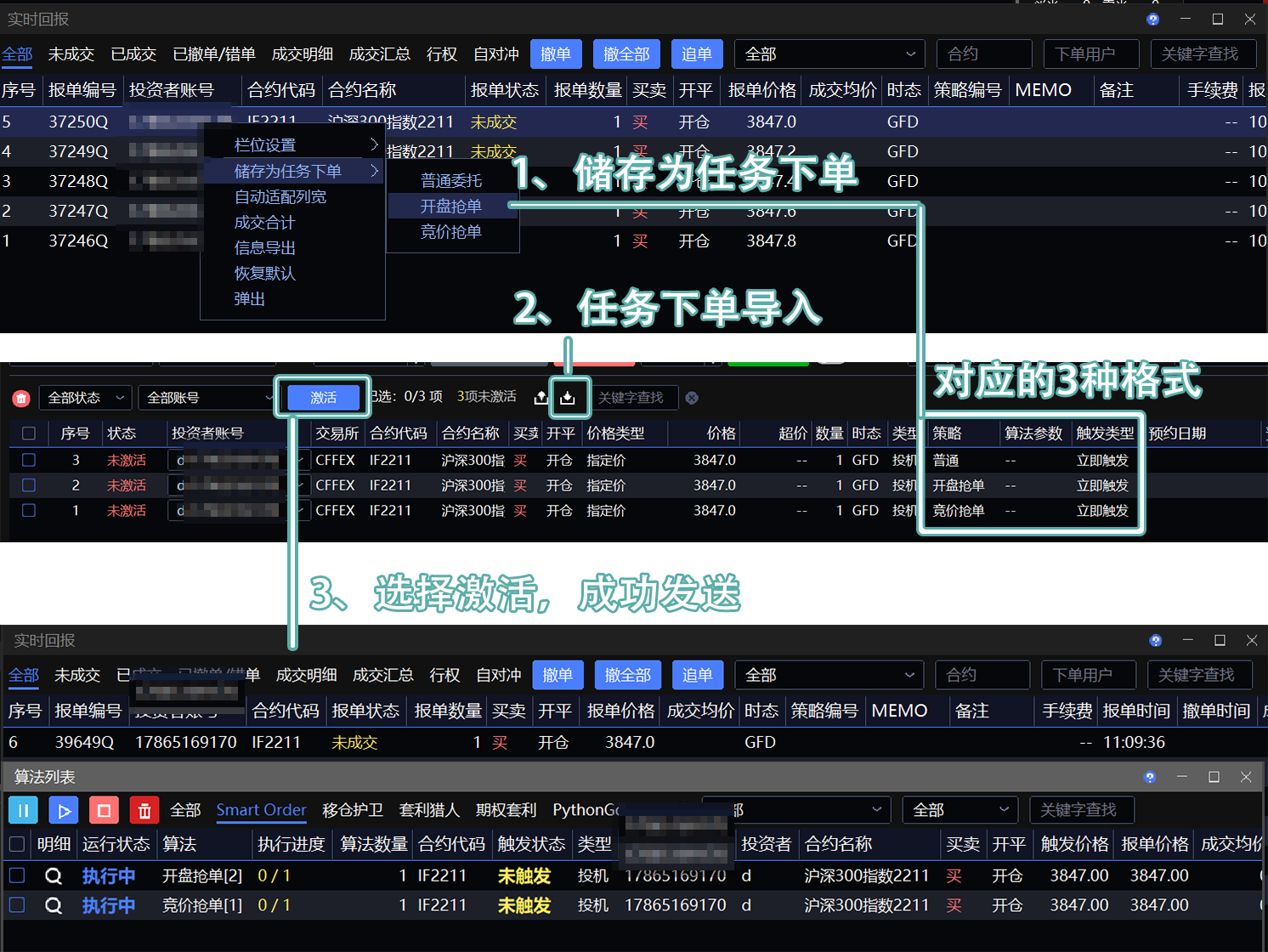
在 实时回报 窗口切换至 全部 或 未成交 标签页,打开右键菜单并选择 储存为未成交单为任务下单,可将全部未成交委托保存为 CSV 文件。
在 实时回报 窗口切换至 全部 或 已撤单/错单 标签页,打开右键菜单并选择 储存为错单为任务下单,可将全部错单保存为 CSV 文件。
可在 任务下单 窗口中导入保存的文件并激活执行。
⚠️ 通过右键菜单中的 信息导出 或右上角的 自动导出 生成的文件,不能在任务下单中激活。
成交合计
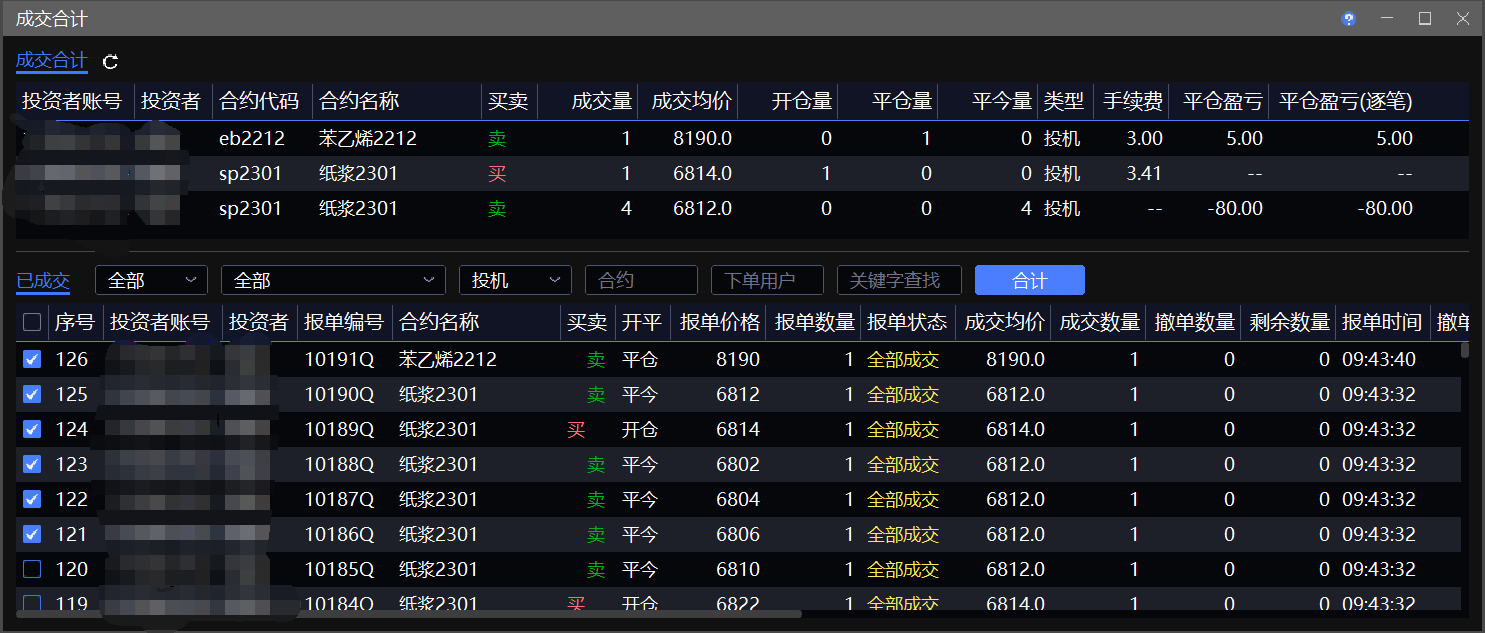
在 实时回报 窗口的右键菜单中选择 成交合计,可选择并筛选已成交委托,合计盈亏、手续费等数据。
自动导出
⚠️ 软件必须保持运行,自动导出功能才能生效。
在 已成交、成交明细 或 成交汇总 标签页右上角勾选 自动保存。列表内容发生变化时,系统会自动将数据保存为只读 CSV 文件。
在 未成交 标签页中点击右上角的 时钟,可开启 定时导出。开启后,系统按照设定的时间间隔导出只读 CSV 文件。
MEMO(委托备注)

下单前,在界面的 MEMO 输入框中输入自定义备注。之后提交的每笔委托都会附加该备注。
可在 实时回报 窗口中使用 关键字查找 筛选 MEMO。
⚠️ 关闭或重启软件后,MEMO 无法保存。如果登录站点为 CTP,MEMO 当日有效,重启软件后仍然可见。
CTP 最多支持保存 12 个字符,即 12 个英文字母或 6 个汉字。
Order Book
Order Book displays real-time futures and options order information. Securities orders are not included. To view securities orders, go to Menu → Equities → Equities Order Book.
Path: Menu → Trade → Order Book

Field Descriptions
Order Status
Working: No quantity in the order has been filled.
Filled: The order has been filled in full.
PartialFilled: Part of the order quantity has been filled.
Fail: The order failed because it was rejected by the upstream system. Check the Remarks field for the reason.
Canceled: The order has been canceled.
Transmitting: The application has not received a response from the upstream system due to a network issue. The order may or may not have been submitted successfully. Restart the application to confirm its status.
Profit and Loss
Close P/L: Today's mark-to-market profit or loss. For previous-day positions, it is calculated from the Settlement Price and Close Price. For today's positions, it is calculated from the Open Price and Close Price.
Close P/L (Trade-by-Trade): Historical profit or loss calculated on a trade-by-trade basis from the Open Price and Close Price.
Other Trading Parameters
Time in Force: The order validity setting, including GFD, FAK, FOK, and GIS.
Hedge Flag: The trading designation of the order, including Speculation and Hedge.
Fee: Calculated using the rate returned by the upstream counter system. Click the Fee field in the Markets window to view the applicable rate. The calculated fee may differ from the amount shown on the Statements. The statement amount shall prevail.
For details about Time in Force, Hedge Flag, and other parameters, see Trading Terms.
Tabs
Switch between the following tabs at the top of the page. Click ⋁ to open tab management and show or hide tabs.
All: Displays all orders submitted during the current trading day.
Working: Displays working orders. Double-click a row to cancel the order.
Filled: Displays filled and partially filled orders by order count.
Canceled/Failed: Displays canceled and failed orders. The reason for a failed order appears in red in the Remarks field.
Fill Details: Displays filled order details by fill ID.
Fill Summary: Aggregates the day's filled quantity, average fill price, fees, P/L, and other information by contract.
Exercise: Displays exercise requests submitted for options during the current trading day.
Offset: Displays offset requests submitted for options during the current trading day.
List Operations
Sort and Display Columns
Reorder Columns
Drag a column header to change the column order.
Hide Columns
Right-click anywhere in the table except the header, then select Column Settings. Select the columns to display and clear the columns to hide.
Resize Columns
Drag a header separator | to resize a column manually. Alternatively, select Auto Fit Column Width from the shortcut menu.
Hide Algorithm Orders
Select No Algo in the upper-right corner to hide orders generated by Smart Order, Rolling Guardian, Spread Hunter, and other algorithms.
Filter a Column
Right-click a column header to filter the data in that column:
For numeric columns, specify a value range.
For text columns, select one or more values.
Select Contracts
Click a contract to select it. A blue background indicates that the contract is selected. If Linkage is enabled in another window, the selected contract is automatically populated in that window.
Hold Ctrl or Shift to select multiple contracts. Press Ctrl + A to select all contracts for batch operations.
Search by Keyword
Enter keywords in the Keywords field to filter multiple fields in the list using partial matches.
Separate multiple keywords with semicolons (;), for example, hc;ic.
Cancel Orders
Only orders with a status of Working or PartialFilled can be canceled.
Double-click an order row to cancel the order.
Click Cancel to cancel the selected working orders.
Click CancelAll to cancel all working orders in the list.
Modify Orders
Only orders with a status of Working or PartialFilled can be modified.
Double-click Order Price and enter a new price. The system cancels the original order and submits a replacement.
Double-click Order Quantity and enter a new quantity. The system cancels the original order and submits a replacement.
Chase Orders
Only orders with a status of Working or PartialFilled can be chased.
Select an order and click Chase. The system cancels the original order and submits a replacement.
By default, the order is chased up to 10 times with a Pay up of 1 Tick. Configure these values under Systems → Settings. If the order remains unfilled after the maximum number of attempts, it remains working in the market.
Resubmit
Orders in any status can be resubmitted.
Select an order and click Resubmit n. The system submits another order using the same order settings.
n is the order quantity. It defaults to 100% of the selected order quantity and can be customized from the drop-down menu.
Save Orders for Designated Trader
In Order Book, open the All or Working tab. From the shortcut menu, select Save Working Orders for Designated Trader to save all working orders as a CSV file.
In Order Book, open the All or Canceled/Failed tab. From the shortcut menu, select Save Failed Orders for Designated Trader to save all failed orders as a CSV file.
Import and activate the saved file in Designated Trader.
⚠️ Files generated using Export Data from the shortcut menu or Auto Export in the upper-right corner cannot be activated in Designated Trader.
Trade Summary
Select Trade Summary from the shortcut menu in Order Book to select and filter filled orders and calculate total P/L, fees, and other data.
Auto Export
⚠️ The application must remain running for Auto Export to work.
On the Filled, Fill Details, or Fill Summary tab, select Auto Save in the upper-right corner. Whenever the list changes, the data is automatically saved as a read-only CSV file.
On the Working tab, click the Clock icon in the upper-right corner to enable Scheduled Export. The system then exports a read-only CSV file at the configured interval.
Post: InfiniTrader × Excel—Get More from Your Data
MEMO (Order Notes)
Before submitting an order, enter a custom note in the MEMO field. The note is added to every subsequent order.
Use Keywords in Order Book to filter orders by MEMO.
⚠️ MEMO is not saved when the application is closed or restarted. For CTP sites, MEMO remains valid for the current trading day and is still available after the application restarts.
CTP supports up to 12 characters: 12 English letters or 6 Chinese characters.